> ## Documentation Index
> Fetch the complete documentation index at: https://funnelfox.com/docs/llms.txt
> Use this file to discover all available pages before exploring further.
# Billing quickstart
> Get started with FunnelFox billing in minutes. Connect a payment provider, create products, and manage from your Support Tool.
Set up FunnelFox Billing and start accepting subscription payments in just a few steps. Choose the setup that matches your funnel configuration.
Once you're set up, you can manage your customers from the FunnelFox Billing dashboard (Support Tool).
## Before you begin
Contact your Customer Success Manager to enable FunnelFox Billing for your project before you start.
## Set up FunnelFox Billing
This setup works with funnels built with FunnelFox.
Follow the integration guide to connect FunnelFox Billing as your unified billing layer for funnels built in FunnelFox.
Define products and pricing in the [Product catalog](https://app.funnelfox.com/products) of your FunnelFox dashboard. Products and pricing remain consistent across all connected payment providers.
Add Checkout elements to your funnel and configure FunnelFox Billing as the payment provider.
Choose which product(s) customers can purchase in that funnel step and configure subscription options.
FunnelFox Billing routes payments across providers and protects your revenue with retry logic and payment cascading.
View and manage the subscription lifecycle—including trials, upgrades, downgrades, pauses, and cancellations—from a unified subscription system.
This setup works with your custom funnels, which are integrated with FunnelFox Billing’s Subscription Engine API through FunnelFox Billing Web SDK.
If your checkout runs in a custom funnel (outside FunnelFox), follow the integration guide to connect FunnelFox Billing through the Web SDK.
An Offering (Feature) represents what users get access to with their subscription (for example, `premium_access`).
Each Offering (Feature) has a unique identifier called `ident` that you'll reference in your subscription setup.
A Price Point is a product definition with pricing. It defines the pricing and terms for an Offering (Feature), including billing cycle and trial options.
Examples:
* `1€ trial for 30 days, then 5€/month`
* `€49/year with no trial`
Use the `createCheckout` Web SDK method to accept payments for your products (Price Points) and tokenize payment credentials.
FunnelFox Billing routes payments across providers and protects your revenue with retry logic and payment cascading.
Manage subscriptions from the FunnelFox Billing dashboard or API. Subscription state is maintained independently of any payment service provider (PSP).
## Your FunnelFox Billing dashboard
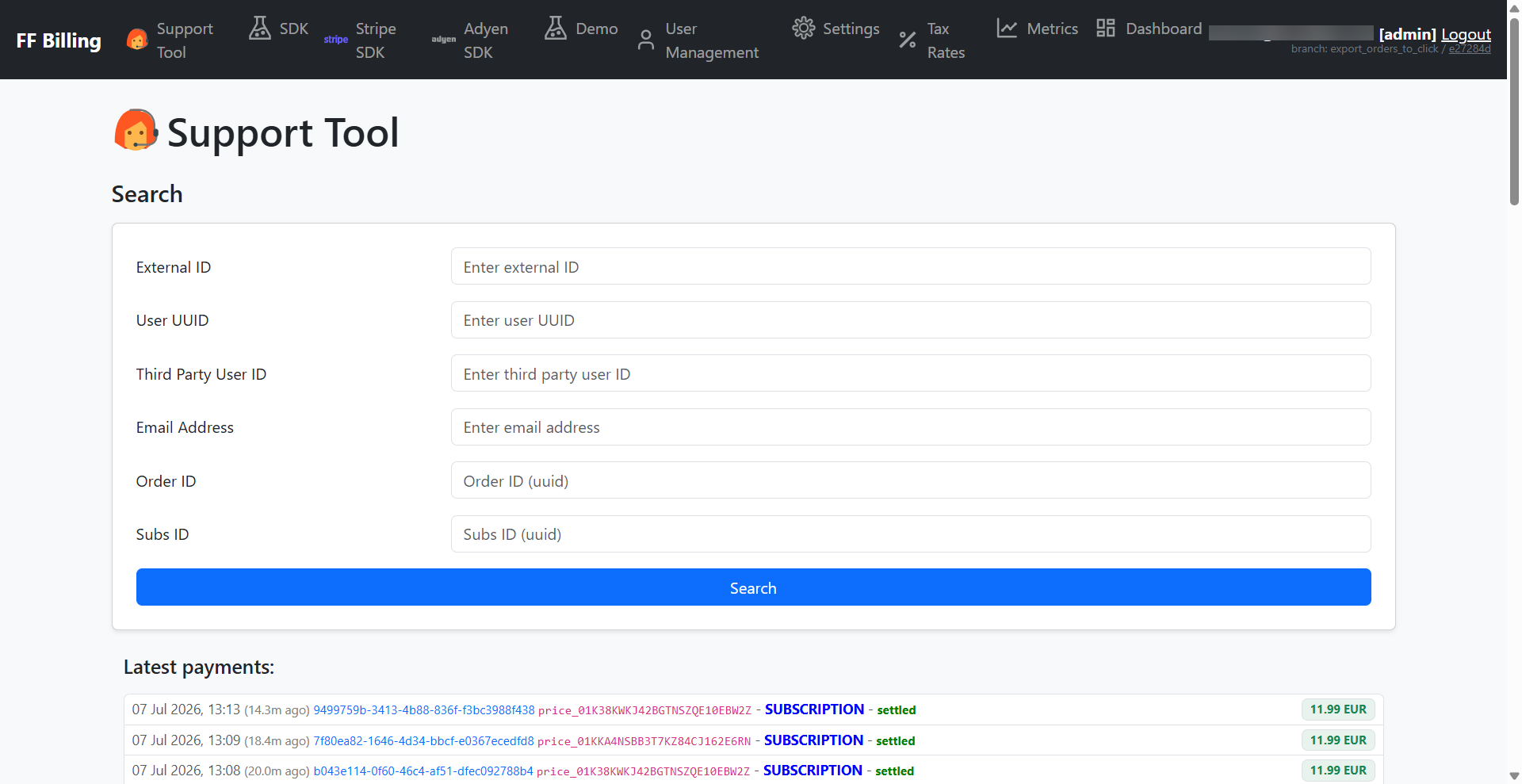
The FunnelFox Billing dashboard (Support Tool) is your team's control center for
managing billing, customers, and configuration.
 If you integrated FunnelFox Billing with FunnelFox, find the
dashboard link on your
[Integrations > FunnelFox Billing](https://app.funnelfox.com/integrations/billing)
page.
If you integrated through the Web SDK, ask your Solutions Manager
for your dashboard link.
From the dashboard you can:
* **Support Tool**: The console you land on after login. Search
for a customer and manage their billing state, including viewing
and refunding [payments](/docs/billing/payments-management), managing
[subscriptions](/docs/billing/manage-subscriptions-billing),
reviewing [disputes](/docs/billing/disputes), inspecting [delivered
webhook events](/docs/develop/webhooks-billing#failed-deliveries), and reading the audit log of every support
action.
* **Demo pages**: A checkout playground listing your price points for
[test purchases](/docs/billing/testing#test-cards).
* **User management**: Manage your team accounts for the
dashboard itself, including creating users, setting their
access level, and resetting passwords.
* **Settings**: Your organization [configuration hub](/docs/billing/settings),
including [webhooks](/docs/billing/settings-webhooks),
[offerings](/docs/billing/settings-offerings), and
[price points](/docs/billing/settings-price-points).
* **Tax rates**: Browse the per-country [tax-rate table](/docs/billing/taxes#tax-rates).
* **Metrics**: An operational dashboard for payment health.
Monitor recent order volume, webhook delivery failures,
[disputes](/docs/billing/disputes), user locks, and fraud alerts to
spot incidents.
What you see in the dashboard depends on your access level.
Detailed documentation on user management is coming soon!
## Next steps
* [Integrate FunnelFox Billing](/docs/billing/integration-billing-funnelfox) with FunnelFox
* [Integrate FunnelFox Billing](/docs/billing/integration-web-sdk) with your custom funnel via Web SDK
If you integrated FunnelFox Billing with FunnelFox, find the
dashboard link on your
[Integrations > FunnelFox Billing](https://app.funnelfox.com/integrations/billing)
page.
If you integrated through the Web SDK, ask your Solutions Manager
for your dashboard link.
From the dashboard you can:
* **Support Tool**: The console you land on after login. Search
for a customer and manage their billing state, including viewing
and refunding [payments](/docs/billing/payments-management), managing
[subscriptions](/docs/billing/manage-subscriptions-billing),
reviewing [disputes](/docs/billing/disputes), inspecting [delivered
webhook events](/docs/develop/webhooks-billing#failed-deliveries), and reading the audit log of every support
action.
* **Demo pages**: A checkout playground listing your price points for
[test purchases](/docs/billing/testing#test-cards).
* **User management**: Manage your team accounts for the
dashboard itself, including creating users, setting their
access level, and resetting passwords.
* **Settings**: Your organization [configuration hub](/docs/billing/settings),
including [webhooks](/docs/billing/settings-webhooks),
[offerings](/docs/billing/settings-offerings), and
[price points](/docs/billing/settings-price-points).
* **Tax rates**: Browse the per-country [tax-rate table](/docs/billing/taxes#tax-rates).
* **Metrics**: An operational dashboard for payment health.
Monitor recent order volume, webhook delivery failures,
[disputes](/docs/billing/disputes), user locks, and fraud alerts to
spot incidents.
What you see in the dashboard depends on your access level.
Detailed documentation on user management is coming soon!
## Next steps
* [Integrate FunnelFox Billing](/docs/billing/integration-billing-funnelfox) with FunnelFox
* [Integrate FunnelFox Billing](/docs/billing/integration-web-sdk) with your custom funnel via Web SDK