> ## Documentation Index
> Fetch the complete documentation index at: https://funnelfox.com/docs/llms.txt
> Use this file to discover all available pages before exploring further.
# FunnelFox dashboard overview
> Navigate the FunnelFox dashboard. Access funnels, analytics, products, customers, subscriptions, experiments, and project settings.
The FunnelFox Dashboard is your command center for creating, managing, and
optimizing marketing funnels. Access real-time analytics, run experiments,
and manage customer relationships all in one place.
**Project-based organization**: All data in your dashboard belongs to the
currently selected project. Switch between projects using the project
selector in the top navigation.
## Dashboard pages
Navigate your dashboard efficiently with these core sections:
Track funnel performance with real-time metrics. Monitor conversion
rates, revenue, and user behavior to make data-driven decisions.
Run A/B tests to optimize your funnels. Compare variants scientifically
and identify what converts best for your audience.
Create and manage your marketing funnels. Build, edit, and localize
funnels by prompt with AI Chat in Editor.
Manage your product catalog and pricing. Create unified offerings that
work across all payment providers.
Monitor active subscriptions from all PSPs. Handle cancellations,
pauses, and customer support in one place.
View all funnel visitors and their journey. Track profiles, sessions,
and conversion paths for better insights.
Configure project settings and integrations. Connect payment providers,
analytics tools, and manage team access.
Create retention flows for at-risk customers. Offer alternatives like
pauses or downgrades to reduce churn.
## Your projects
Projects organize your funnels and data into separate workspaces. Each
project gets:
* Unique [domain](/docs/dashboard/settings#domains): `your-project.fnlfx.com`
* Separate [analytics](/docs/dashboard/analytics) and [customer data](/docs/dashboard/customers)
* Independent [settings](/docs/dashboard/settings) and [integrations](/docs/integrations)
* [Team member](/docs/dashboard/settings#team) access control
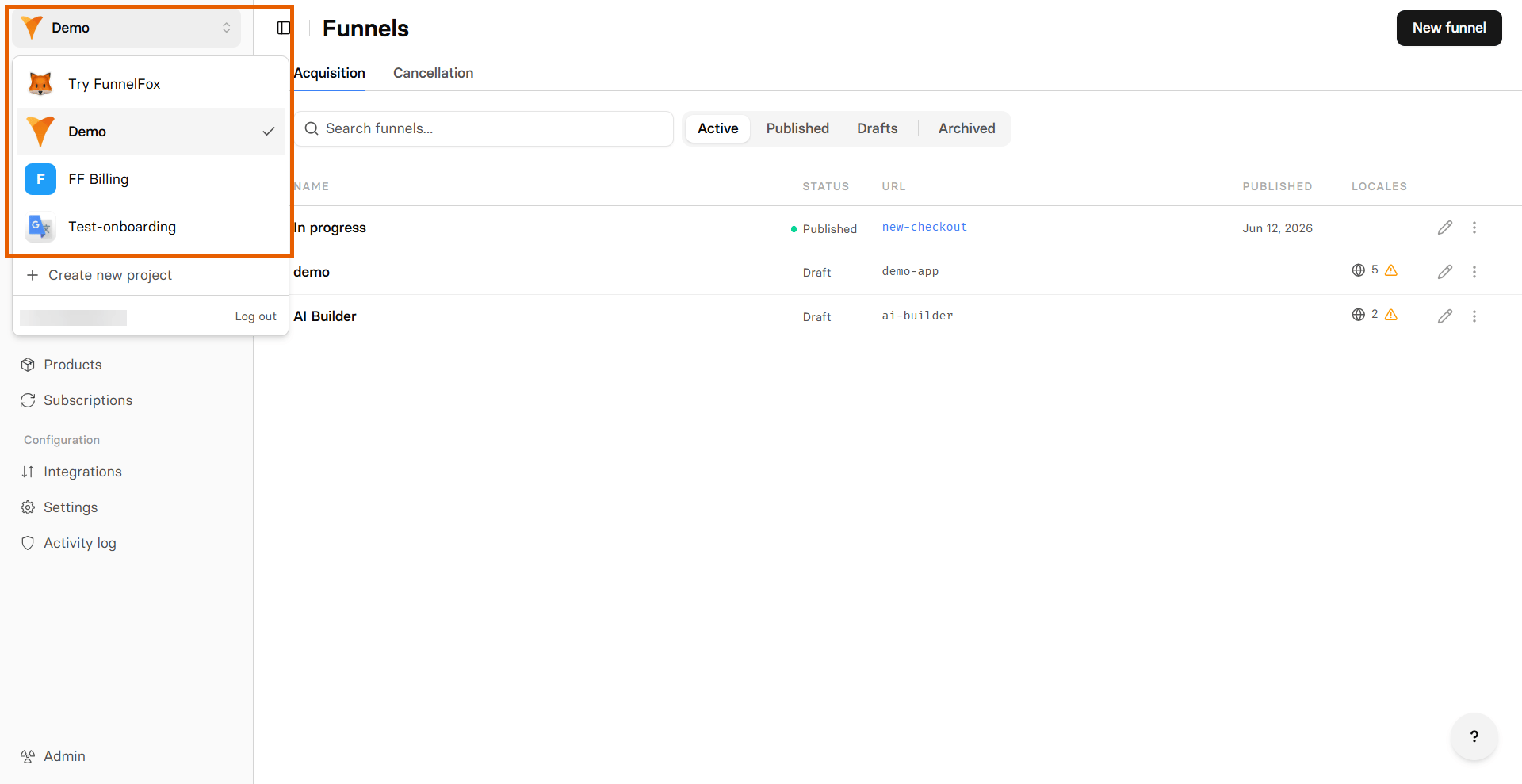
To view your projects, click the project name in the top left. From there, you can switch to any project:
 ### Create new projects
You may want to create a new project when you need a separate integration setup, for example, a new Meta Pixel with its own clean data source.
To create a new project:
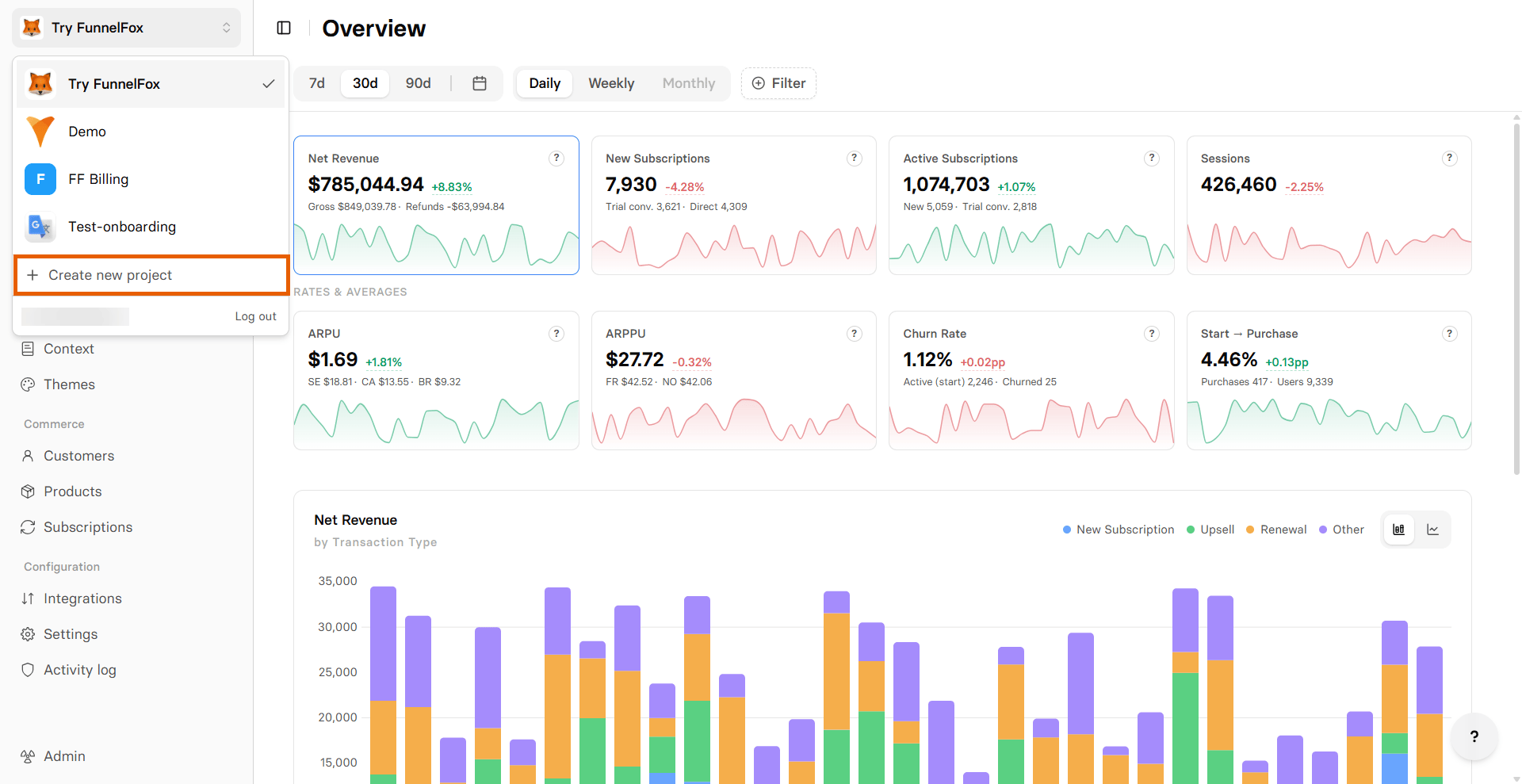
1. Click the project name in the top left.
2. Click **+ Create new project**.
We recommend creating a separate project with its own new Meta Pixel when launching a new app to keep your data source clean.
### Create new projects
You may want to create a new project when you need a separate integration setup, for example, a new Meta Pixel with its own clean data source.
To create a new project:
1. Click the project name in the top left.
2. Click **+ Create new project**.
We recommend creating a separate project with its own new Meta Pixel when launching a new app to keep your data source clean.
 ## Next steps
* Start with [creating your first funnel](/docs/dashboard/funnels)
* Set up [experiments](/docs/dashboard/experiments)
* Configure [analytics](/docs/dashboard/analytics)
* Review [customer management](/docs/dashboard/customers)
## Next steps
* Start with [creating your first funnel](/docs/dashboard/funnels)
* Set up [experiments](/docs/dashboard/experiments)
* Configure [analytics](/docs/dashboard/analytics)
* Review [customer management](/docs/dashboard/customers)