> ## Documentation Index
> Fetch the complete documentation index at: https://funnelfox.com/docs/llms.txt
> Use this file to discover all available pages before exploring further.
# Create experiment
> Step-by-step guide to setting up, launching, and validating an A/B experiment in FunnelFox.
## Before you start
Before creating an experiment, run through this checklist:
* All funnels you plan to use are new (have never received traffic) and are published.
* Each funnel works end to end.
* You've decided which funnel is the control — your current baseline.
* You've chosen a primary metric to optimize for (e.g. Paywall → Purchase, ARPU).
* You have a clear hypothesis — what you're changing and why you expect it to improve results.
Using a funnel with previous traffic negatively impacts your A/B test results and disrupts traffic distribution across variants.
## Launch experiments
Create, launch, and validate an experiment in FunnelFox. Learn how to avoid the most common setup mistakes.
### 1. Create experiment
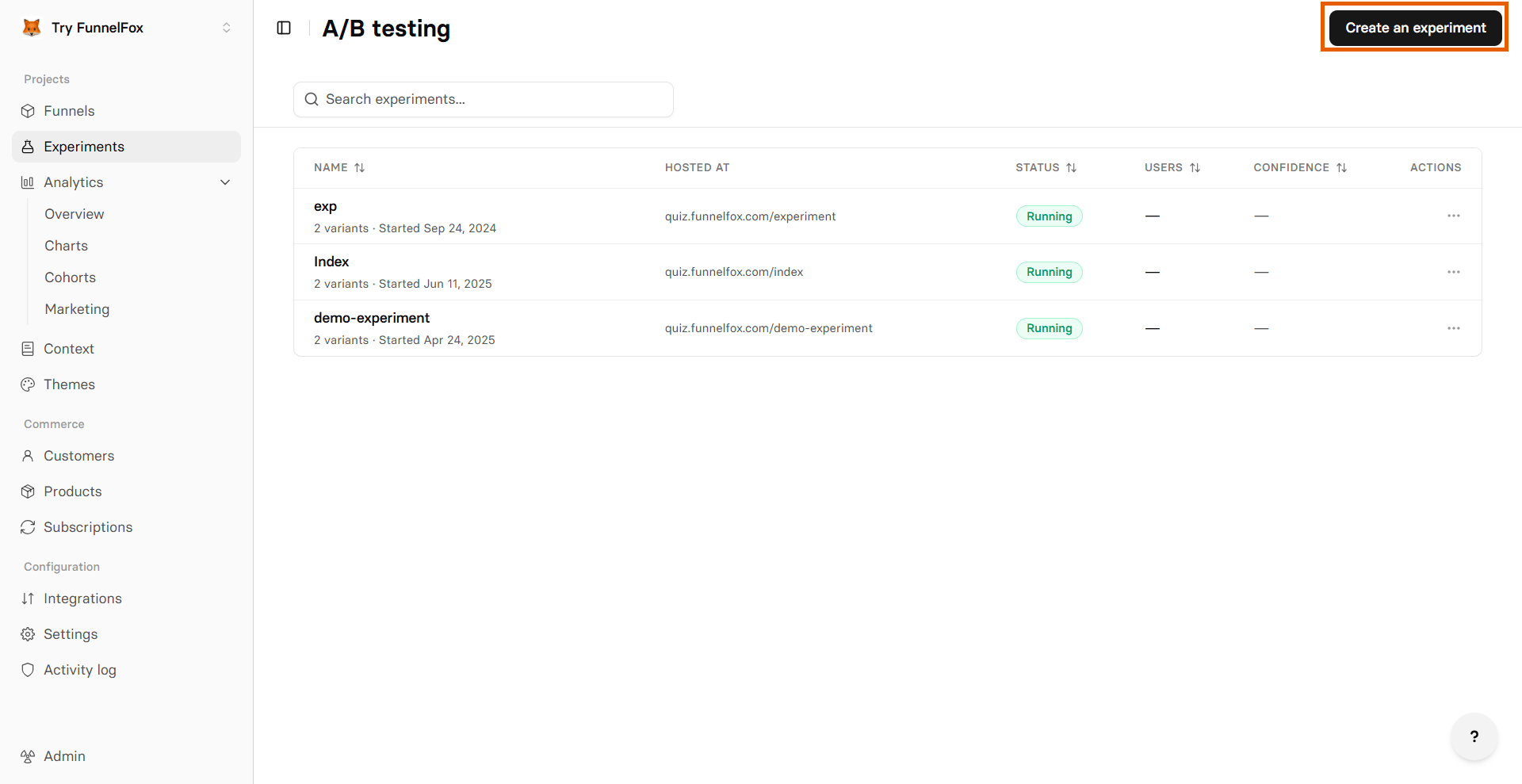
Go to the [Experiments page](https://app.funnelfox.com/experiments) and click **Create experiment**.
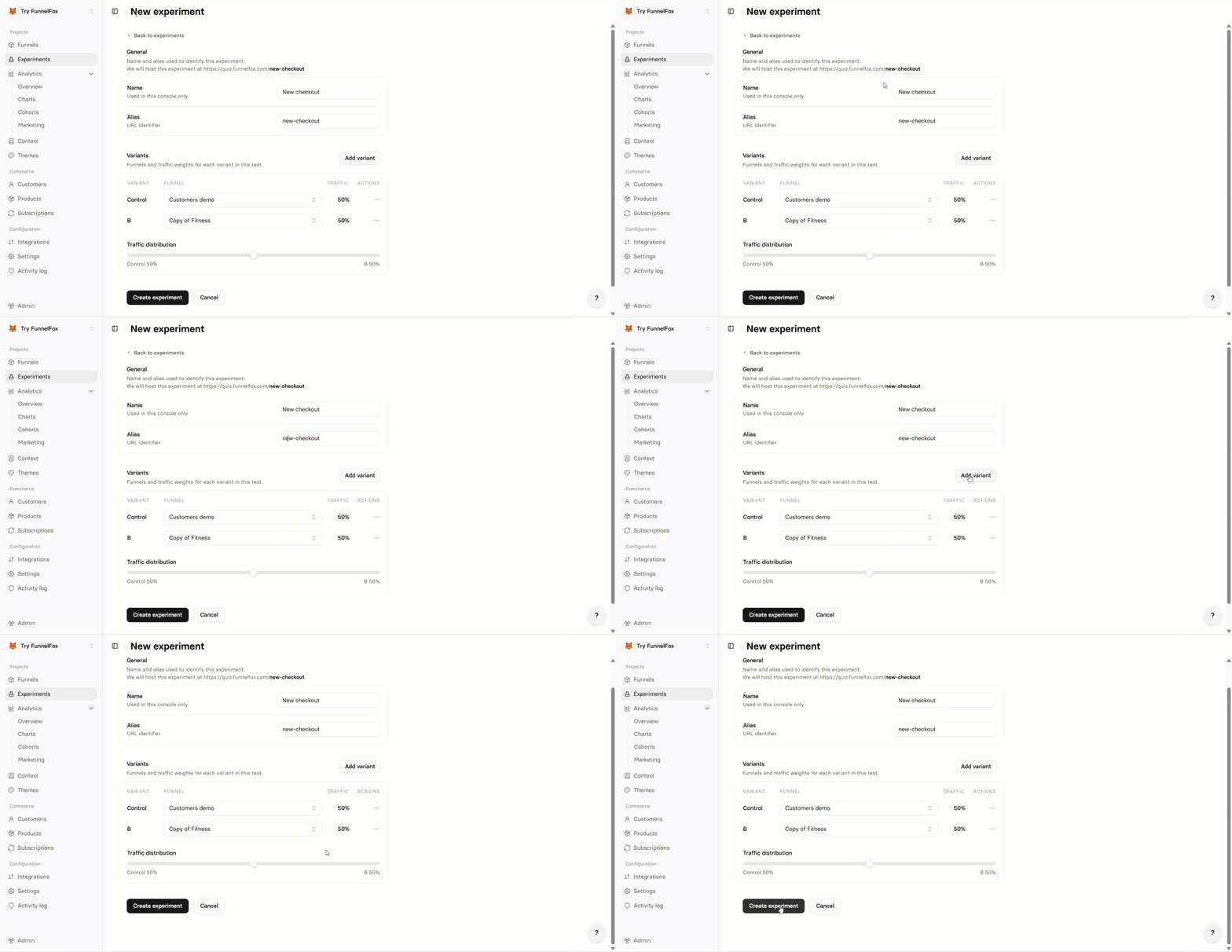
 Enter a descriptive name.
The alias becomes the experiment URL: `your-project.fnlfx.com/{alias}`. It's auto-generated from the name, but you can edit it.
Choose the funnel that serves as your baseline. All variant results are measured against this funnel.
Choose the funnel that serves as your variant. You can click **Add funnel variant** and add up to 3 variants — 4 funnels total (Control + B + C + D). Each funnel can only be used once across all variants in the same experiment.
Use the slider to distribute traffic across variants. All splits must total 100%.
Equal splits give you the fastest path to statistical significance.
Click **Create**. The experiment is saved and receives traffic.
Enter a descriptive name.
The alias becomes the experiment URL: `your-project.fnlfx.com/{alias}`. It's auto-generated from the name, but you can edit it.
Choose the funnel that serves as your baseline. All variant results are measured against this funnel.
Choose the funnel that serves as your variant. You can click **Add funnel variant** and add up to 3 variants — 4 funnels total (Control + B + C + D). Each funnel can only be used once across all variants in the same experiment.
Use the slider to distribute traffic across variants. All splits must total 100%.
Equal splits give you the fastest path to statistical significance.
Click **Create**. The experiment is saved and receives traffic.
 ### 2. Validate the setup
Do a quick check to confirm everything is working:
* Open the experiment URL in your browser (`your-project.fnlfx.com/{alias}`). You should land on one of the variant funnels.
* After a few visits, open the experiment analytics and confirm users are being recorded.
Open the experiment URL in several incognito windows to simulate different users.
### 2. Validate the setup
Do a quick check to confirm everything is working:
* Open the experiment URL in your browser (`your-project.fnlfx.com/{alias}`). You should land on one of the variant funnels.
* After a few visits, open the experiment analytics and confirm users are being recorded.
Open the experiment URL in several incognito windows to simulate different users.
 ### 3. Finish experiment
Finish the experiment when your results are statistically reliable. Look for a **Confidence** of ≥95% on the winning variant, sustained consistently over time — not just a single good day. If confidence stays green and the trend is stable, you have enough evidence to pick a winner.
When you're ready to pick a winner, follow the steps below to finish the experiment.
The winning funnel automatically takes over the experiment URL. If you have a conflicting alias, go to that funnel's settings and change its alias to something else before you finish the experiment.
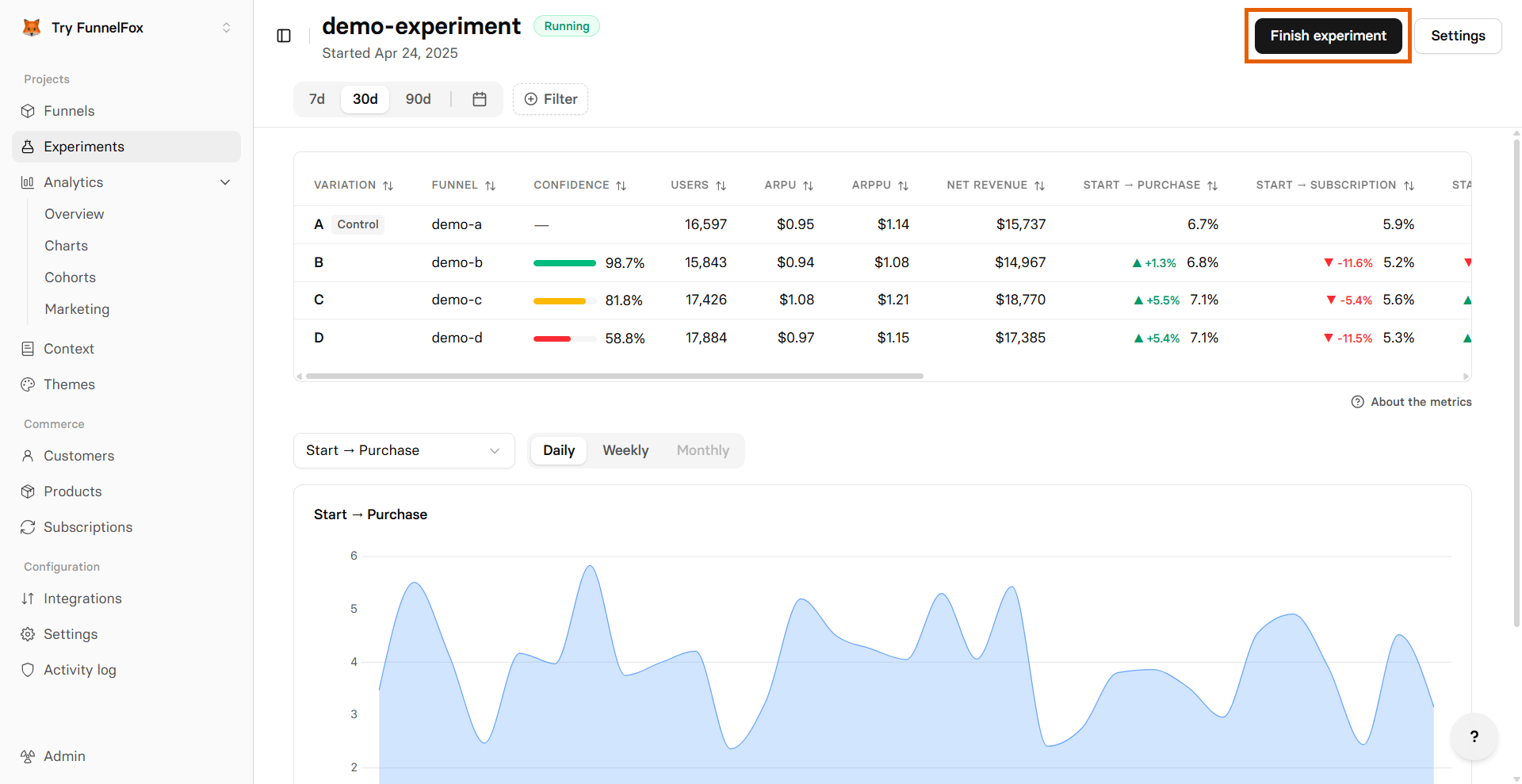
Go to the [A/B testing page](https://app.funnelfox.com/experiments), click your experiment name, then click **Finish experiment** at the bottom.
### 3. Finish experiment
Finish the experiment when your results are statistically reliable. Look for a **Confidence** of ≥95% on the winning variant, sustained consistently over time — not just a single good day. If confidence stays green and the trend is stable, you have enough evidence to pick a winner.
When you're ready to pick a winner, follow the steps below to finish the experiment.
The winning funnel automatically takes over the experiment URL. If you have a conflicting alias, go to that funnel's settings and change its alias to something else before you finish the experiment.
Go to the [A/B testing page](https://app.funnelfox.com/experiments), click your experiment name, then click **Finish experiment** at the bottom.
 Choose the funnel that performed best. This funnel will take over the experiment URL.
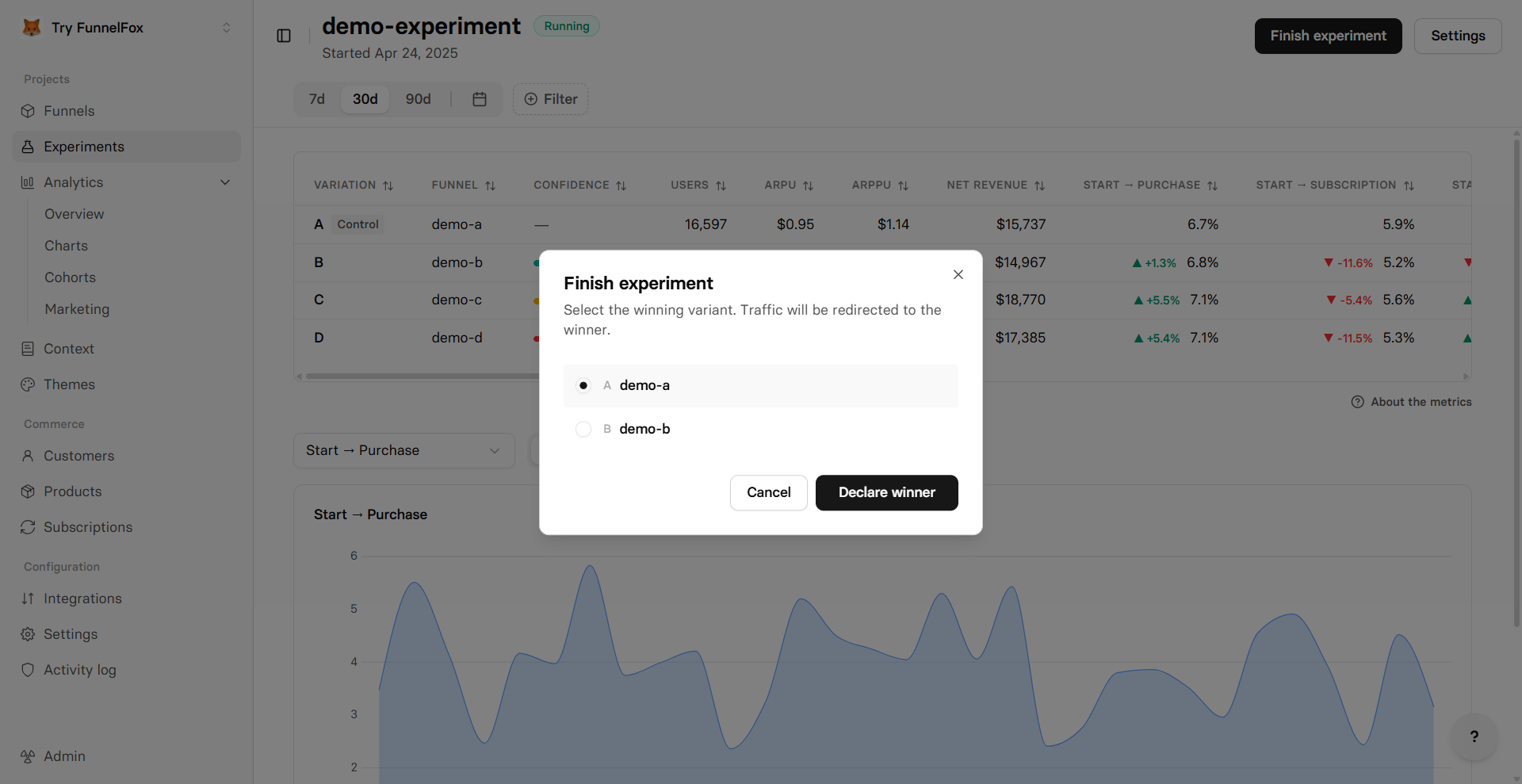 Click **Declare the winner** to confirm your selection. The experiment is disabled and the winning funnel is now live at the experiment URL.
After that, the same URL that previously ran the A/B test points directly to the winning funnel, with no experiment routing involved.
## Experiment results
Once your experiment collects data, you can view results on the experiment overview page. Go to the [Experiments page](https://app.funnelfox.com/experiments) and click any experiment name.
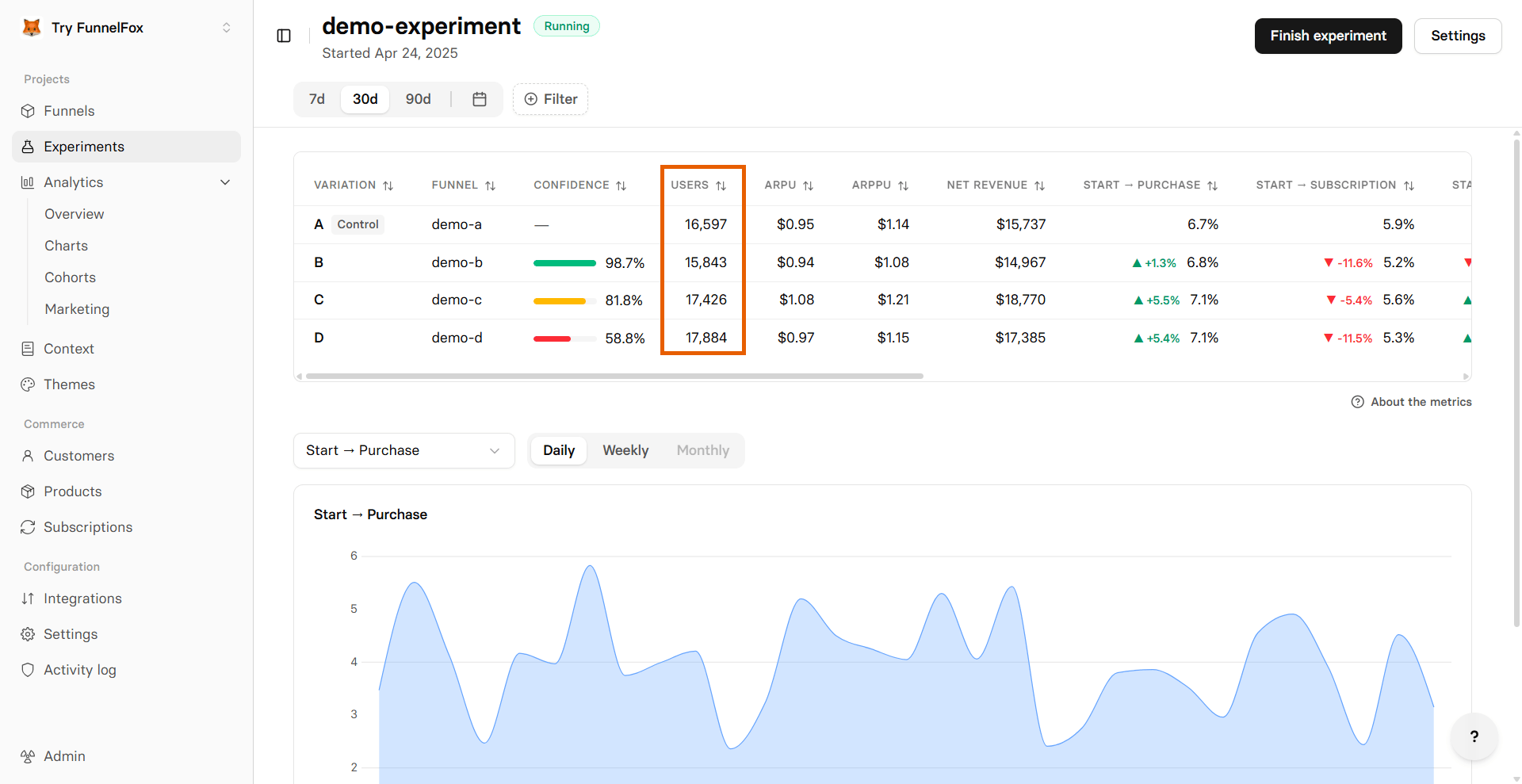
The overview shows a table with one row per variant. The first row is always the control (your baseline). All other variants are compared against it.
Experiment starts updating data daily at 00:00 UTC to ensure consistency across global teams.
Click **Declare the winner** to confirm your selection. The experiment is disabled and the winning funnel is now live at the experiment URL.
After that, the same URL that previously ran the A/B test points directly to the winning funnel, with no experiment routing involved.
## Experiment results
Once your experiment collects data, you can view results on the experiment overview page. Go to the [Experiments page](https://app.funnelfox.com/experiments) and click any experiment name.
The overview shows a table with one row per variant. The first row is always the control (your baseline). All other variants are compared against it.
Experiment starts updating data daily at 00:00 UTC to ensure consistency across global teams.
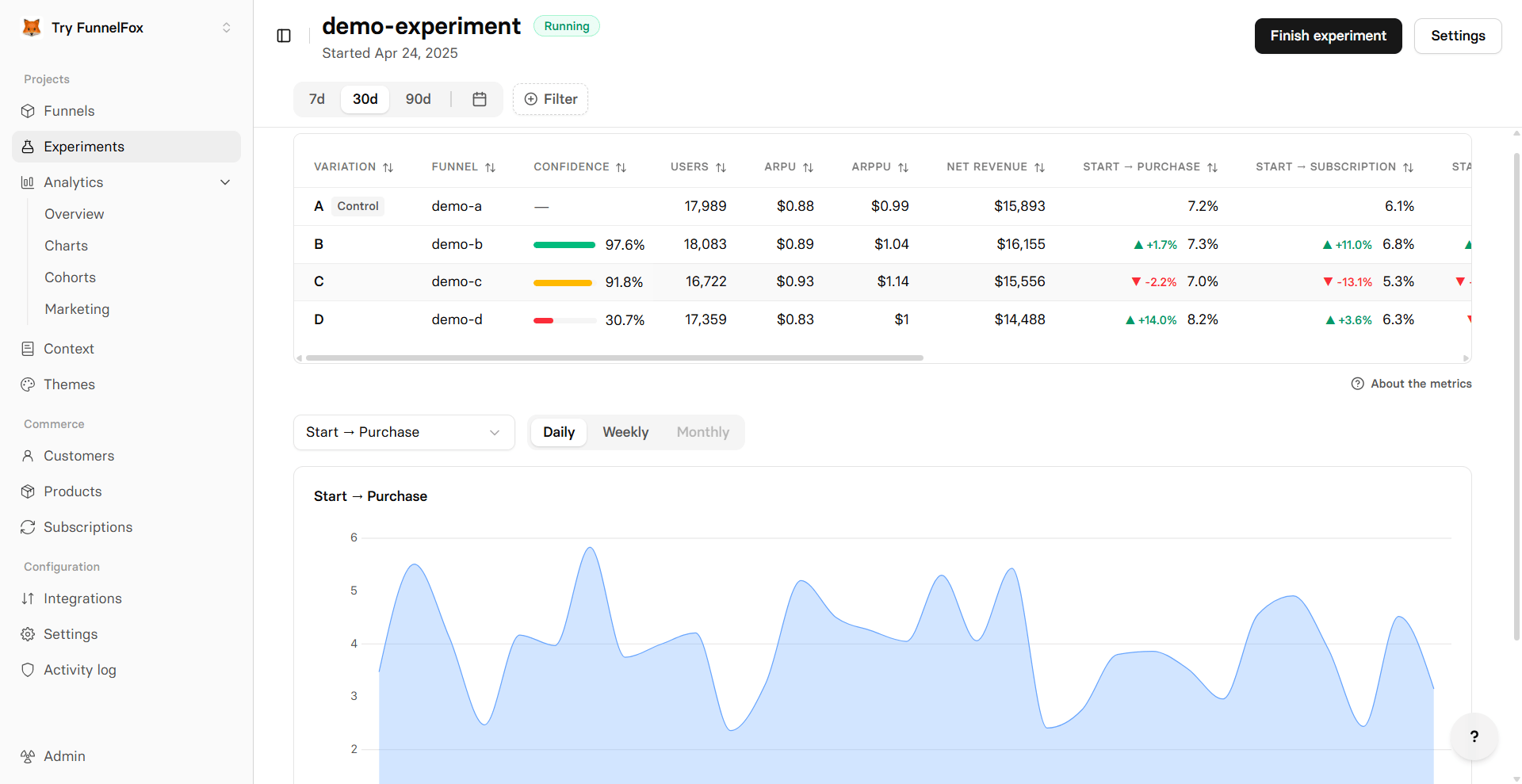 The columns appear in this order:
* **Variation**: Variant label (A, B, C, D).
* **Funnel**: The funnel assigned to this variant.
* **Confidence**: Statistical significance (1 − p-value) from a two-proportion z-test of the variant's Active → Purchase conversion vs. control. ≥95% ≈ p ≤ 0.05. Color-coded: green (≥95%) = significant, amber (75–94%) = inconclusive, red (\<75%) = likely noise. For non-control variants only.
* **Users**: Unique users, deduplicated by profile across sessions.
* **ARPU**: Average revenue per user (gross revenue divided by unique users, meaning anyone with a session or a transaction).
* **ARPPU**: Average revenue per paying user (gross revenue divided by unique paying users).
* **Net Revenue**: Total net revenue attributed to this variant.
* **Start → 2nd Screen**: Percentage of users who started the funnel and completed the first screen.
* **Start → Purchase**: Percentage of users who started the funnel and completed a purchase.
* **Start → Subscription**: Percentage of users who started the funnel and started a subscription.
For conversion rates, purchase means completing a checkout and includes trials and one-time payments, while Start → Subscription includes only subscription starts and excludes trials and one-time payments.
* **Start → Lead**: Percentage of users who started the funnel and became a lead.
* **Start → Paywall**: Percentage of users who started the funnel and reached the paywall.
* **Paywall → Purchase**: Percentage of users who reached the paywall and completed a purchase.
* **Purchases**: Count of all purchase transactions, including renewals.
* **New Subs**: Number of new subscriptions started.
* **Trials Started**: Number of trials started.
* **Trials Converted**: Number of trials that converted to paid.
For non-control variants, each conversion-rate column shows the change vs. control next to the variant's own rate: a green ▲ for an improvement and a red ▼ for a decline.
You can also use a chart below the table to track any metric over time per variant.
### Filters
To narrow results to those that matter for your decisions, data on experiment results can be filtered by:
* Currency
* Country
## Experiment settings
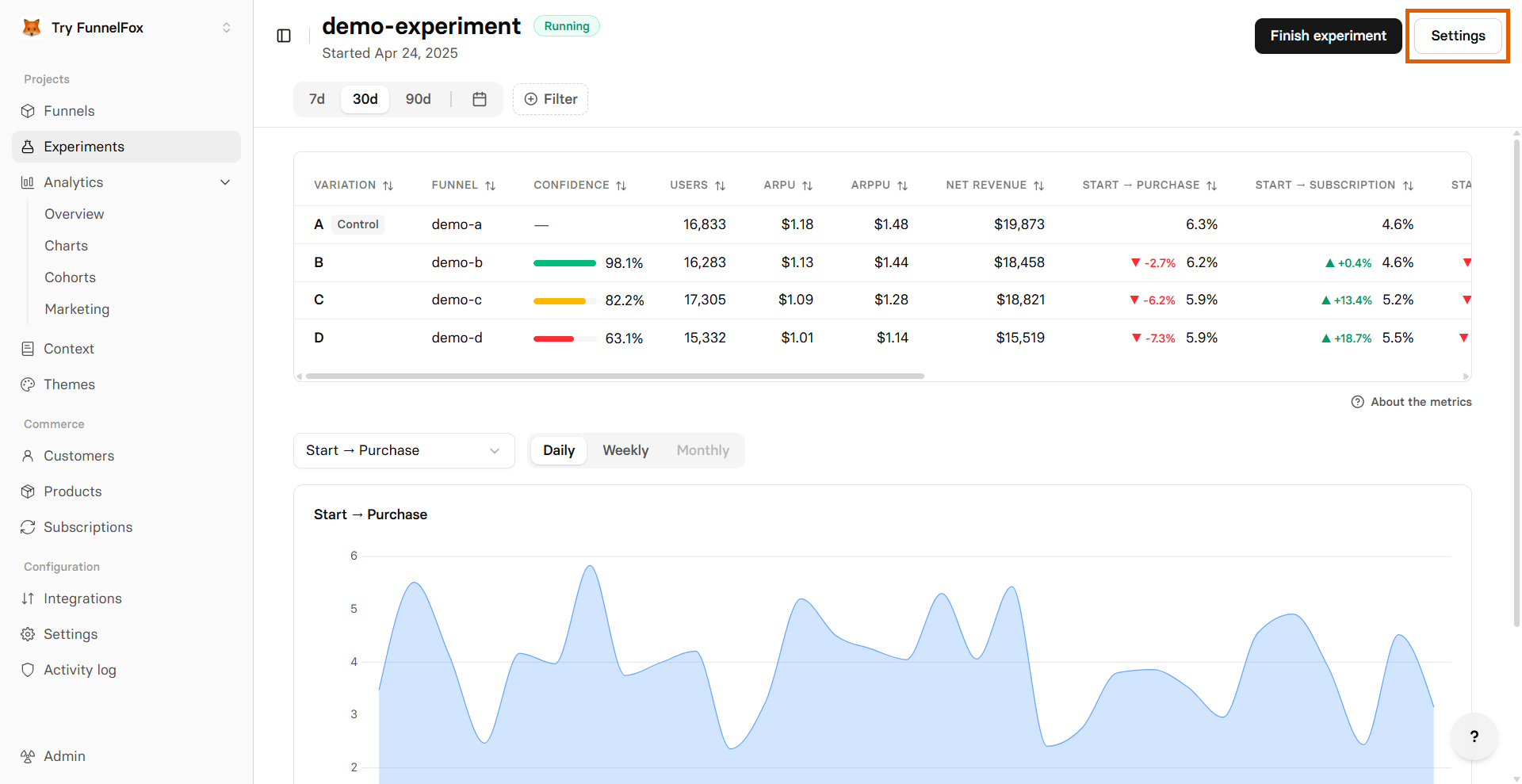
To edit an experiment, go to the [Experiments page](https://app.funnelfox.com/experiments), click your experiment name, then click **Settings** at the top right.
The columns appear in this order:
* **Variation**: Variant label (A, B, C, D).
* **Funnel**: The funnel assigned to this variant.
* **Confidence**: Statistical significance (1 − p-value) from a two-proportion z-test of the variant's Active → Purchase conversion vs. control. ≥95% ≈ p ≤ 0.05. Color-coded: green (≥95%) = significant, amber (75–94%) = inconclusive, red (\<75%) = likely noise. For non-control variants only.
* **Users**: Unique users, deduplicated by profile across sessions.
* **ARPU**: Average revenue per user (gross revenue divided by unique users, meaning anyone with a session or a transaction).
* **ARPPU**: Average revenue per paying user (gross revenue divided by unique paying users).
* **Net Revenue**: Total net revenue attributed to this variant.
* **Start → 2nd Screen**: Percentage of users who started the funnel and completed the first screen.
* **Start → Purchase**: Percentage of users who started the funnel and completed a purchase.
* **Start → Subscription**: Percentage of users who started the funnel and started a subscription.
For conversion rates, purchase means completing a checkout and includes trials and one-time payments, while Start → Subscription includes only subscription starts and excludes trials and one-time payments.
* **Start → Lead**: Percentage of users who started the funnel and became a lead.
* **Start → Paywall**: Percentage of users who started the funnel and reached the paywall.
* **Paywall → Purchase**: Percentage of users who reached the paywall and completed a purchase.
* **Purchases**: Count of all purchase transactions, including renewals.
* **New Subs**: Number of new subscriptions started.
* **Trials Started**: Number of trials started.
* **Trials Converted**: Number of trials that converted to paid.
For non-control variants, each conversion-rate column shows the change vs. control next to the variant's own rate: a green ▲ for an improvement and a red ▼ for a decline.
You can also use a chart below the table to track any metric over time per variant.
### Filters
To narrow results to those that matter for your decisions, data on experiment results can be filtered by:
* Currency
* Country
## Experiment settings
To edit an experiment, go to the [Experiments page](https://app.funnelfox.com/experiments), click your experiment name, then click **Settings** at the top right.
 You can edit all fields while the experiment is running:
* Name
* Alias
* Variants
* Traffic split
After you finish the experiment, only the **Name** can be changed. The alias, variants, and traffic split are locked.
Swapping a variant's funnel changes which funnel's data is shown in that row, but no historical data is deleted. Events stay tied to the experiment, so re-adding a removed funnel brings its data back.
You can also archive the experiment from the settings page. The confirmation dialog reads "This will archive this experiment and all its data."
You can't archive a funnel while it's part of an active experiment. Finish the experiment first.
## Experiment event metadata
FunnelFox attaches experiment context to every webhook event, nested under the `location` object. Look for these fields:
* `experiment_id` — unique identifier for the experiment.
* `experiment_title` — human-readable experiment name.
* `experiment_alias` — the URL alias the experiment runs on.
Webhooks don't include a variant or winner field.
See the [Webhooks reference](/docs/develop/webhooks) for the full list of events that carry this data.
Analytics integrations receive the experiment ID as the `experiment` event property (Amplitude, Mixpanel). The experiment alias is available via webhooks (`experiment_alias`), not through CDP event properties.
You can edit all fields while the experiment is running:
* Name
* Alias
* Variants
* Traffic split
After you finish the experiment, only the **Name** can be changed. The alias, variants, and traffic split are locked.
Swapping a variant's funnel changes which funnel's data is shown in that row, but no historical data is deleted. Events stay tied to the experiment, so re-adding a removed funnel brings its data back.
You can also archive the experiment from the settings page. The confirmation dialog reads "This will archive this experiment and all its data."
You can't archive a funnel while it's part of an active experiment. Finish the experiment first.
## Experiment event metadata
FunnelFox attaches experiment context to every webhook event, nested under the `location` object. Look for these fields:
* `experiment_id` — unique identifier for the experiment.
* `experiment_title` — human-readable experiment name.
* `experiment_alias` — the URL alias the experiment runs on.
Webhooks don't include a variant or winner field.
See the [Webhooks reference](/docs/develop/webhooks) for the full list of events that carry this data.
Analytics integrations receive the experiment ID as the `experiment` event property (Amplitude, Mixpanel). The experiment alias is available via webhooks (`experiment_alias`), not through CDP event properties.