> ## Documentation Index
> Fetch the complete documentation index at: https://funnelfox.com/docs/llms.txt
> Use this file to discover all available pages before exploring further.
# Actions & triggers: navigation & payments
> Configure funnel actions: conditional navigation, show/hide elements, purchases, dynamic actions, cancellation flows, and subscription swaps.
Actions are the things that happen in your funnel. When someone clicks a
button, selects an option or plan, completes a purchase - actions determine what
comes next. They're the logic that turns static screens into interactive
experiences.
## How It Works
**Elements have triggers → Triggers fire actions → Actions do things**
Every interactive element (buttons, options, inputs, plan pickers) has triggers that detect
user interactions. When triggered, they execute actions you've configured.
Most common example: Button element → "On click" trigger → Navigate
action → User moves to next screen. That's 90% of funnel interactions.
 ## Quick Reference
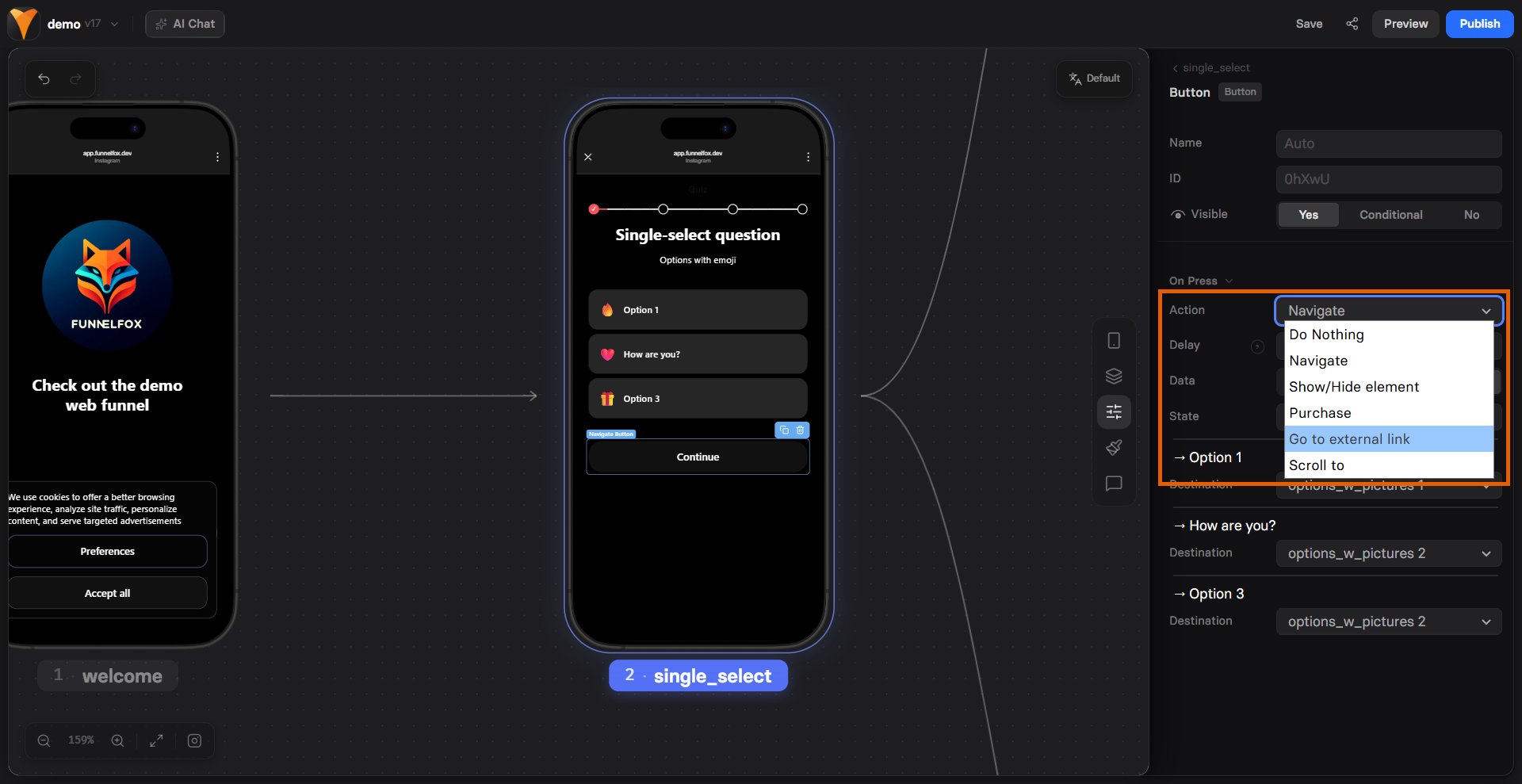
Here's every action available in FunnelFox:
| Action | What it does |
| ----------------------- | ------------------------- |
| **Navigate** | Move to another screen |
| **External Link** | Open website/app store |
| **Show/Hide** | Toggle element visibility |
| **Purchase** | Upsell with stored card |
| **Scroll To** | Jump to page section |
| **Cancel Subscription** | End user's subscription |
| **Pause Subscription** | Temporarily suspend |
| **Gift Free Period** | Extend without charge |
| **Swap Subscription** | Change to different plan |
| **Do Nothing** | No operation |
## Common Navigation Patterns
Before diving into all the details, here are the patterns you'll use most:
**Button → Navigate to next screen**
The bread and butter of funnels. Each screen has a "Continue" button
that moves users forward through your sequence.
**Options → Navigate to different screens**
User selects their interest/plan/preference, and you send them to the
relevant next step. Perfect for qualifying leads.
**Plan picker → Show/Hide element**
Reveal additional details without cluttering
the initial view.
**Button → Dynamic Navigate by traffic type**
Send paid-ad visitors and organic visitors to different screens from
a single button.
## Dynamic Actions
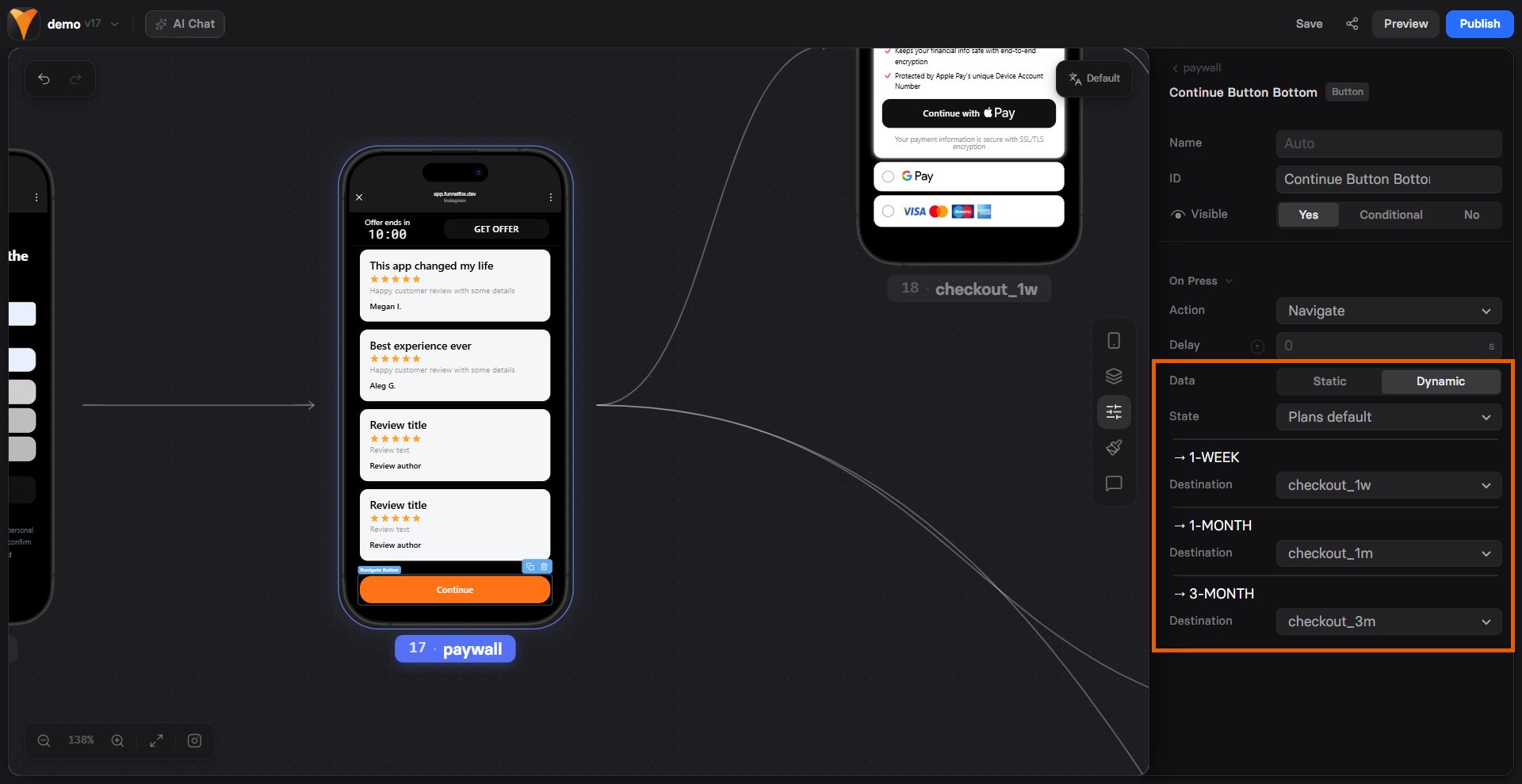
A dynamic action resolves its value at click time from the visitor's state,
so different visitors get different outcomes from the same button.
Switch the action's **Data** field from **Static** to **Dynamic**, then pick
a **State** to branch on. You can branch on any of these:
* **Options**: The choice a visitor made in an Options element.
* **Subscription plans**: The plan a visitor selected in a Plan picker.
* **Trial prices**: The price a visitor selected in a Price picker.
* **Traffic type**: Whether the visitor arrived from paid ads or organic
traffic.
* **Paid**: The entry URL carries a known ad-network click ID (such as
`gclid`, `fbclid`, or `ttclid`) with a non-empty value. Matching is
case-insensitive.
* **Organic**: Everyone else. `utm_*` parameters and empty click IDs do
not count as paid.
Each state gives you one branch per possible value (or Paid / Organic for
traffic type). Set a value for every branch.
## Quick Reference
Here's every action available in FunnelFox:
| Action | What it does |
| ----------------------- | ------------------------- |
| **Navigate** | Move to another screen |
| **External Link** | Open website/app store |
| **Show/Hide** | Toggle element visibility |
| **Purchase** | Upsell with stored card |
| **Scroll To** | Jump to page section |
| **Cancel Subscription** | End user's subscription |
| **Pause Subscription** | Temporarily suspend |
| **Gift Free Period** | Extend without charge |
| **Swap Subscription** | Change to different plan |
| **Do Nothing** | No operation |
## Common Navigation Patterns
Before diving into all the details, here are the patterns you'll use most:
**Button → Navigate to next screen**
The bread and butter of funnels. Each screen has a "Continue" button
that moves users forward through your sequence.
**Options → Navigate to different screens**
User selects their interest/plan/preference, and you send them to the
relevant next step. Perfect for qualifying leads.
**Plan picker → Show/Hide element**
Reveal additional details without cluttering
the initial view.
**Button → Dynamic Navigate by traffic type**
Send paid-ad visitors and organic visitors to different screens from
a single button.
## Dynamic Actions
A dynamic action resolves its value at click time from the visitor's state,
so different visitors get different outcomes from the same button.
Switch the action's **Data** field from **Static** to **Dynamic**, then pick
a **State** to branch on. You can branch on any of these:
* **Options**: The choice a visitor made in an Options element.
* **Subscription plans**: The plan a visitor selected in a Plan picker.
* **Trial prices**: The price a visitor selected in a Price picker.
* **Traffic type**: Whether the visitor arrived from paid ads or organic
traffic.
* **Paid**: The entry URL carries a known ad-network click ID (such as
`gclid`, `fbclid`, or `ttclid`) with a non-empty value. Matching is
case-insensitive.
* **Organic**: Everyone else. `utm_*` parameters and empty click IDs do
not count as paid.
Each state gives you one branch per possible value (or Paid / Organic for
traffic type). Set a value for every branch.
 ## Navigation Actions
These are the actions you'll use in almost every funnel:
### Navigate
Move users between screens in your funnel.
**When to use**: Moving forward in your funnel, jumping to specific sections,
or creating branching paths based on user choices.
**Settings:**
* **Destination**: Where to go
* "Next screen" - continues the sequence
* Specific screen - jump anywhere in your funnel
* **Delay** (optional): Pause before navigating - useful for showing a
quick message first
### Show/Hide Element
Control what's visible on the screen.
**When to use**: Progressive disclosure, showing error messages, revealing
additional options, or creating interactive experiences based on the selected plan.
**Settings:**
* **Element**: Which element to control
* **Action**: Show, Hide, or Toggle
* **Delay** (optional): Smooth transitions with timing
Makes hidden elements appear. Perfect for:
* Success messages after form submission
* Additional product details on request
* Progressive form fields
Removes elements from view. Great for:
* Clearing error messages
* Simplifying screens after selection
* Removing irrelevant options
Switches between visible/hidden. Ideal for:
* FAQ accordions
* "Show more/less" content
* Mobile menu buttons
### External Link
Send users to websites, app stores, or
[set up deep links](/docs/integrations/authentication/deep-links).
**When to use**: App downloads, terms of service, partner sites, or any
external destination.
**Settings:**
* **URL**: Where to send them
* **New tab**: Keep your funnel open in background
* **Track as CTA**: Count in conversion metrics
* **Delay** (optional): Show message before redirecting
### Scroll To
Smoothly scroll to a specific element on the same screen.
**When to use**: Most commonly for paywall screens which tend to be longer
with multiple pricing tiers, testimonials, and FAQs. Also useful for jumping
to specific sections on any longer screen.
**Settings:**
* **Target element**: Where to scroll
* **Delay** (optional): Wait before scrolling
## Purchase Actions
### Purchase
Process payments for upsells and one-click purchases using stored card details.
**When to use**: Upsells after initial purchase, one-click upgrades, or
additional offers. NOT for initial checkout - the Checkout element handles
that with its own richer built-in payment flow.
**Core settings:**
* **Provider**: Stripe or Paddle (only these are supported for now)
* **Product**: What they're buying (from your PSP catalog)
* **Type**:
* One-time payment
* Subscription
* Free trial (no charge, then subscription)
* Paid trial (reduced price, then full subscription)
**Advanced options:**
* **Allow promocodes**: Let users enter discount codes
* Can pre-fill from URL using `{{query.promo_code}}`
* See [Variables](/docs/editor/variables) for details
* **Stripe Tax**: Automatic tax calculation (Stripe only)
* **Custom value**: Override price for analytics
### Handling Purchase Outcomes
Every purchase action needs three outcome handlers:
Usually navigate to thank you screen
Show error and retry options
Offer discount or alternative
## Cancellation Actions
Special actions only available in cancellation funnels. These help retain
customers who want to leave. See [Cancellation Funnels](/docs/dashboard/funnels#cancellation-funnels)
for setup details.
### Pause Subscription
Temporarily suspend billing and access.
**When to use**: Seasonal products, temporary financial issues, or giving
users a break without losing them completely.
Paused subscriptions lose access immediately. Consider offering a free
period instead if you want to maintain access.
### Gift Free Period
Extend their subscription without charging.
**When to use**: Retention offer for unhappy customers, or buying time to
demonstrate value.
**Settings:**
* **Duration**: How long (days, weeks, months)
* **Amount**: How many periods
### Swap Subscription
Change to a different plan (usually cheaper).
**When to use**: Downsell to retain price-sensitive customers who would
otherwise cancel completely.
**Settings:**
* **New plan**: Target subscription from your catalog
* **Provider**: Must match current subscription
### Cancel Subscription
Process the cancellation if retention fails.
**When to use**: Final option after exhausting retention offers. Always
gather feedback about why they're leaving.
## Utility Actions
### Do Nothing
A special action that performs no operation.
**When to use:**
* Placeholder while building
* Custom JavaScript handles the interaction
* Testing trigger configurations
**Custom code**: If you've added JavaScript to handle an interaction,
use "Do Nothing" to satisfy the action requirement without interference.
## Troubleshooting
Check that:
* Element has a trigger configured
* No JavaScript errors in browser console
* Delays aren't too long (users might leave)
* For dynamic actions: state exists and matches
Verify:
* Every branch has a value set (empty branches fall back)
* An unmapped Navigate branch sends the visitor to the next screen
* The visitor actually provided that input earlier in the funnel
* For traffic type: the entry URL carried a valid ad-network click ID
Common issues:
* Using test keys vs live keys
* Product not properly configured in PSP
* For upsells: no stored card from previous purchase
* Promocode settings misconfigured
## Next Steps
* [Variables & Dynamic Content](/docs/editor/variables) - Use URL parameters and user data
* [Element Reference](/docs/elements/overview) - See which elements support which actions
* [Publishing Guide](/docs/editor/publishing) - Test actions in preview mode
* [Localization](/docs/editor/localizations) - Translate dynamic content
## Navigation Actions
These are the actions you'll use in almost every funnel:
### Navigate
Move users between screens in your funnel.
**When to use**: Moving forward in your funnel, jumping to specific sections,
or creating branching paths based on user choices.
**Settings:**
* **Destination**: Where to go
* "Next screen" - continues the sequence
* Specific screen - jump anywhere in your funnel
* **Delay** (optional): Pause before navigating - useful for showing a
quick message first
### Show/Hide Element
Control what's visible on the screen.
**When to use**: Progressive disclosure, showing error messages, revealing
additional options, or creating interactive experiences based on the selected plan.
**Settings:**
* **Element**: Which element to control
* **Action**: Show, Hide, or Toggle
* **Delay** (optional): Smooth transitions with timing
Makes hidden elements appear. Perfect for:
* Success messages after form submission
* Additional product details on request
* Progressive form fields
Removes elements from view. Great for:
* Clearing error messages
* Simplifying screens after selection
* Removing irrelevant options
Switches between visible/hidden. Ideal for:
* FAQ accordions
* "Show more/less" content
* Mobile menu buttons
### External Link
Send users to websites, app stores, or
[set up deep links](/docs/integrations/authentication/deep-links).
**When to use**: App downloads, terms of service, partner sites, or any
external destination.
**Settings:**
* **URL**: Where to send them
* **New tab**: Keep your funnel open in background
* **Track as CTA**: Count in conversion metrics
* **Delay** (optional): Show message before redirecting
### Scroll To
Smoothly scroll to a specific element on the same screen.
**When to use**: Most commonly for paywall screens which tend to be longer
with multiple pricing tiers, testimonials, and FAQs. Also useful for jumping
to specific sections on any longer screen.
**Settings:**
* **Target element**: Where to scroll
* **Delay** (optional): Wait before scrolling
## Purchase Actions
### Purchase
Process payments for upsells and one-click purchases using stored card details.
**When to use**: Upsells after initial purchase, one-click upgrades, or
additional offers. NOT for initial checkout - the Checkout element handles
that with its own richer built-in payment flow.
**Core settings:**
* **Provider**: Stripe or Paddle (only these are supported for now)
* **Product**: What they're buying (from your PSP catalog)
* **Type**:
* One-time payment
* Subscription
* Free trial (no charge, then subscription)
* Paid trial (reduced price, then full subscription)
**Advanced options:**
* **Allow promocodes**: Let users enter discount codes
* Can pre-fill from URL using `{{query.promo_code}}`
* See [Variables](/docs/editor/variables) for details
* **Stripe Tax**: Automatic tax calculation (Stripe only)
* **Custom value**: Override price for analytics
### Handling Purchase Outcomes
Every purchase action needs three outcome handlers:
Usually navigate to thank you screen
Show error and retry options
Offer discount or alternative
## Cancellation Actions
Special actions only available in cancellation funnels. These help retain
customers who want to leave. See [Cancellation Funnels](/docs/dashboard/funnels#cancellation-funnels)
for setup details.
### Pause Subscription
Temporarily suspend billing and access.
**When to use**: Seasonal products, temporary financial issues, or giving
users a break without losing them completely.
Paused subscriptions lose access immediately. Consider offering a free
period instead if you want to maintain access.
### Gift Free Period
Extend their subscription without charging.
**When to use**: Retention offer for unhappy customers, or buying time to
demonstrate value.
**Settings:**
* **Duration**: How long (days, weeks, months)
* **Amount**: How many periods
### Swap Subscription
Change to a different plan (usually cheaper).
**When to use**: Downsell to retain price-sensitive customers who would
otherwise cancel completely.
**Settings:**
* **New plan**: Target subscription from your catalog
* **Provider**: Must match current subscription
### Cancel Subscription
Process the cancellation if retention fails.
**When to use**: Final option after exhausting retention offers. Always
gather feedback about why they're leaving.
## Utility Actions
### Do Nothing
A special action that performs no operation.
**When to use:**
* Placeholder while building
* Custom JavaScript handles the interaction
* Testing trigger configurations
**Custom code**: If you've added JavaScript to handle an interaction,
use "Do Nothing" to satisfy the action requirement without interference.
## Troubleshooting
Check that:
* Element has a trigger configured
* No JavaScript errors in browser console
* Delays aren't too long (users might leave)
* For dynamic actions: state exists and matches
Verify:
* Every branch has a value set (empty branches fall back)
* An unmapped Navigate branch sends the visitor to the next screen
* The visitor actually provided that input earlier in the funnel
* For traffic type: the entry URL carried a valid ad-network click ID
Common issues:
* Using test keys vs live keys
* Product not properly configured in PSP
* For upsells: no stored card from previous purchase
* Promocode settings misconfigured
## Next Steps
* [Variables & Dynamic Content](/docs/editor/variables) - Use URL parameters and user data
* [Element Reference](/docs/elements/overview) - See which elements support which actions
* [Publishing Guide](/docs/editor/publishing) - Test actions in preview mode
* [Localization](/docs/editor/localizations) - Translate dynamic content