> ## Documentation Index
> Fetch the complete documentation index at: https://funnelfox.com/docs/llms.txt
> Use this file to discover all available pages before exploring further.
# Payment integrations overview
> Compare and set up payment providers in FunnelFox: Stripe, Paddle, Solidgate, PayPal. Choose the best PSP for your web funnels.
FunnelFox integrates with major payment service providers (PSPs) to process payments directly through your funnels. Connect your existing payment account to start accepting payments immediately.
}
href="/integrations/payments/paddle"
horizontal
/>
}
href="/integrations/payments/solidgate"
horizontal
/>
}
href="/integrations/payments/fastspring"
horizontal
/>
## How it works
Choose your payment provider and enter your API keys, if needed. FunnelFox securely stores them and connects your account automatically.
FunnelFox automatically fetches your products, prices, and discounts from the PSP. They're then available in Checkout elements.
Add products to your Checkout element in the funnel Editor, and you're ready to accept payments.
Place a [Wallet button](/docs/elements/wallet-button) on your
paywall to let customers pay in one click with Apple Pay or Google Pay.
FunnelFox never stores or processes payment card details. All sensitive
payment data is handled directly by your chosen PSP.
## Get started
### 1. Choose payment provider
Here are the most popular payment providers available in FunnelFox. Select any for detailed setup instructions, or compare them below.
* [Set up Stripe](/docs/integrations/payments/stripe#setup)
* [Set up Paddle](/docs/integrations/payments/paddle)
* [Set up Solidgate](/docs/integrations/payments/solidgate)
* [Set up FunnelFox Billing](/docs/billing/integration-billing-funnelfox)
* [Set up FastSpring](/docs/integrations/payments/fastspring)
**PSP comparison**:
| Feature | Stripe | Paddle | Solidgate | FunnelFox
Billing | FastSpring |
| ------------------------------ | ------ | ------ | --------- | ------------------------ | ---------- |
| **Payment methods** | | | | | |
| Cards | ✅ | ✅ | ✅ | ✅ | ✅ |
| Apple Pay | ✅ | ✅ | ✅ | ✅ | ✅ |
| Google Pay | ✅ | ✅ | ✅ | ✅ | ✅ |
| PayPal | ✅\* | ✅ | ✅ | ✅ | ✅ |
| **Subscriptions** | | | | | |
| Subscriptions | ✅ | ✅ | ✅ | ✅ | ✅ |
| Free & paid trials | ✅ | ✅ | ✅ | ✅ | ✅ |
| **Upsells** | | | | | |
| One-time products | ✅ | ✅ | ✅ | ✅ | ✅ |
| Subscription upsells (2nd sub) | ✅ | ❌ | ✅ | ✅ | ✅ |
| Subscription upsells (upgrade) | ✅ | ✅ | ❌ | ❌ | ❌ |
| **Offers** | | | | | |
| Intro offers | ✅ | ✅ | ❌ | ❌ | ✅ |
| Promo codes (Coupons) | ✅ | ✅ | ❌ | ❌ | ❌ |
| **Additional features** | | | | | |
| Cancellation funnels | ✅ | ✅ | ✅ | ✅ | ❌ |
| Wallet button | ✅ | ✅ | ✅ | ✅ | ❌ |
| Failed payment recovery | ✅ | ✅ | ✅ | ✅ | ✅ |
\*Via [API keys setup](/docs/integrations/payments/stripe#deprecated-api-keys-setup-flow) with European Stripe accounts only.
\*\*Available manually through the Support tool in your FunnelFox Billing account and through the [cancellation API](/docs/api-reference/cancel-subscription).
### 2. Configure products in funnel
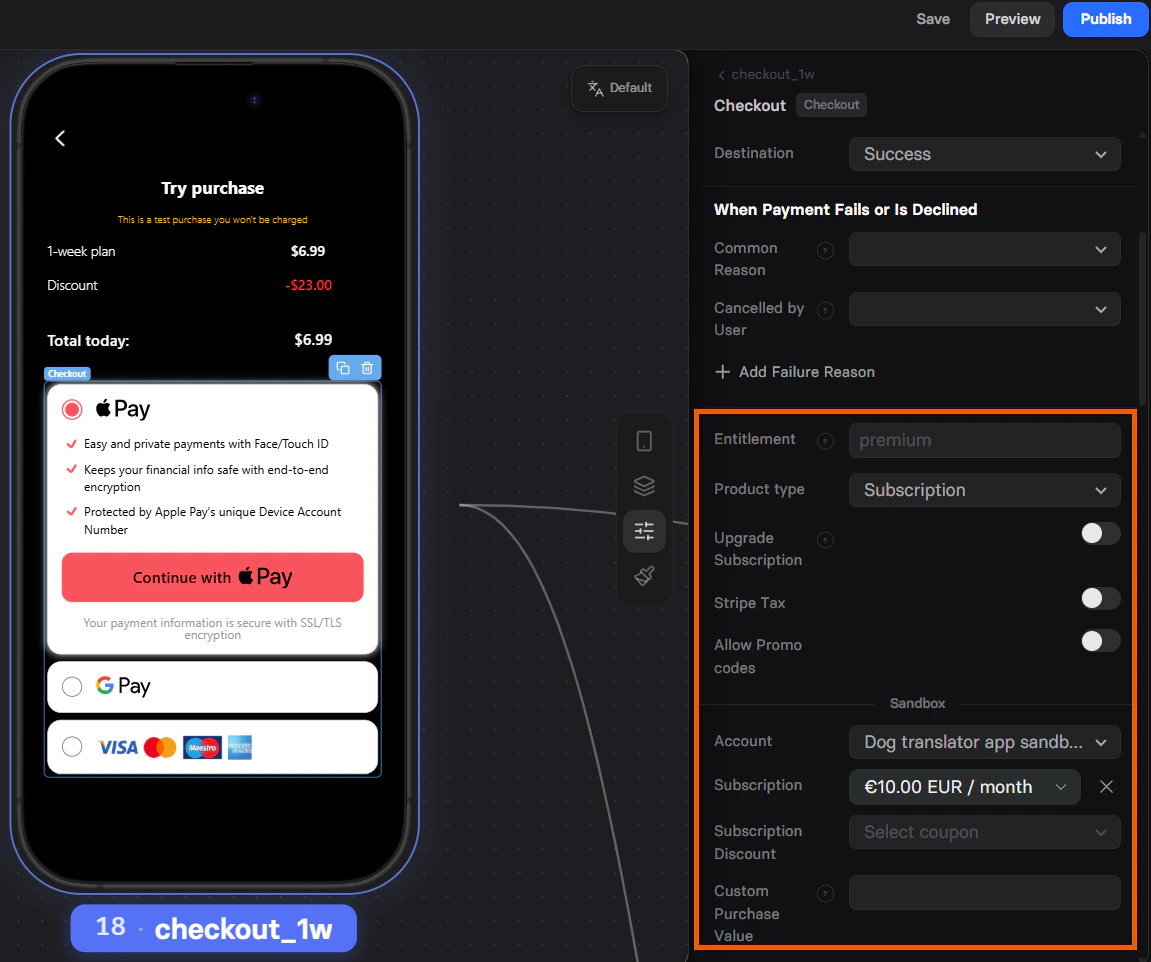
Once integrated, FunnelFox automatically fetches your products, prices, and discounts from the PSP.
No matter which PSP you connect, all subscriptions in your funnels are configured through the **Element** tab of the [Checkout](/docs/elements/checkout).
While editing the **Payment Provider Settings** section there, you can configure:
* [Free trial](/docs/elements/checkout#free-trial)
* [Paid trial](/docs/elements/checkout#paid-trial)
* [Offers](/docs/elements/checkout#offer) (intro, promo, coupons)
* [Upsells](/docs/elements/checkout#upsell)
 ### 3. Add wallet buttons
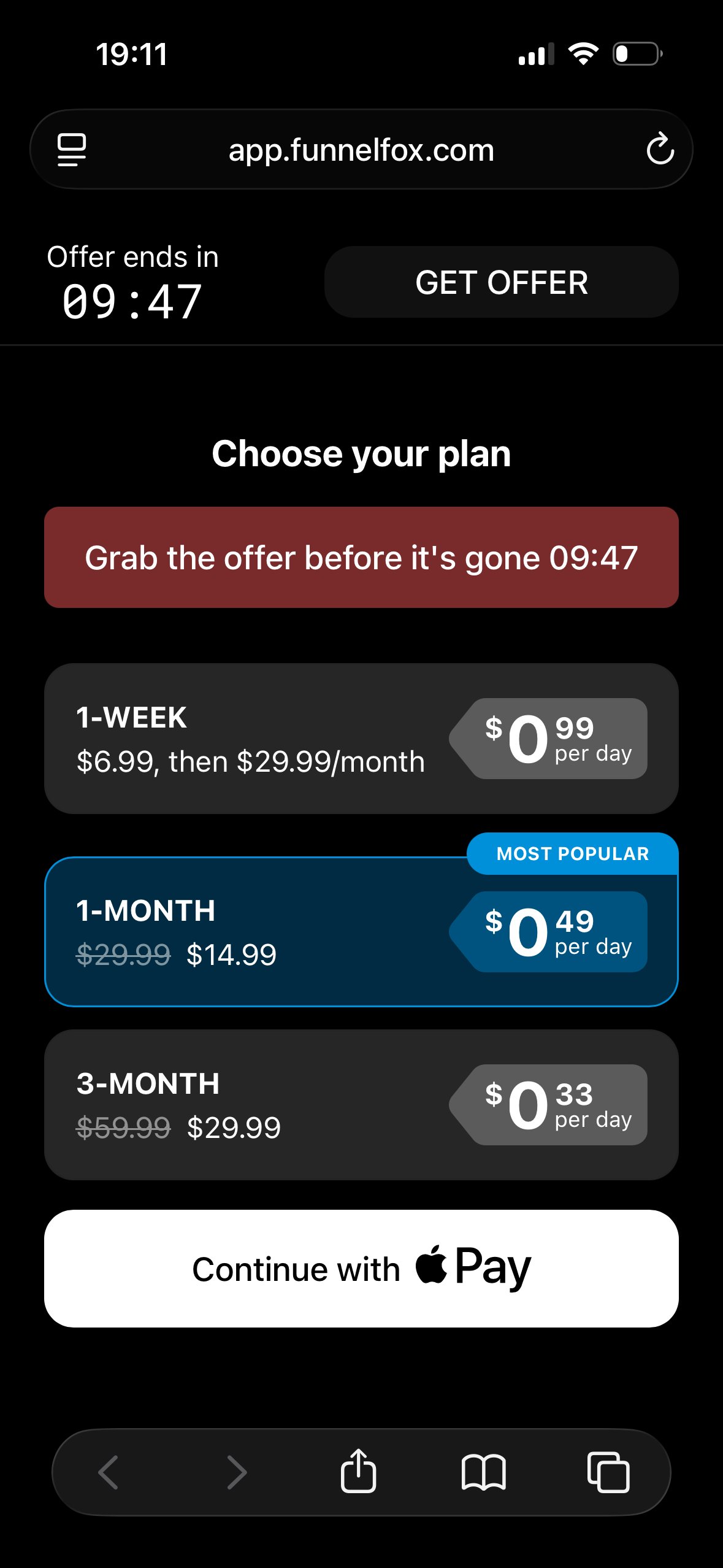
Wallet buttons let customers pay in one click using Apple Pay or Google Pay,
without typing card details. Because they skip manual card entry and use
payment credentials customers already have on their device, they reduce
checkout friction and typically boost conversion rates by up to 30%.
Wallet buttons are supported by Stripe, Solidgate, and FunnelFox Billing.
With Paddle, the one-click experience is implemented as the
[Apple Pay Express Checkout](/docs/integrations/payments/paddle#apple-pay-express-checkout)
instead.
Go to the [Wallet button article](/docs/elements/wallet-button) to set it up
in your funnels.
### 3. Add wallet buttons
Wallet buttons let customers pay in one click using Apple Pay or Google Pay,
without typing card details. Because they skip manual card entry and use
payment credentials customers already have on their device, they reduce
checkout friction and typically boost conversion rates by up to 30%.
Wallet buttons are supported by Stripe, Solidgate, and FunnelFox Billing.
With Paddle, the one-click experience is implemented as the
[Apple Pay Express Checkout](/docs/integrations/payments/paddle#apple-pay-express-checkout)
instead.
Go to the [Wallet button article](/docs/elements/wallet-button) to set it up
in your funnels.
 ## Next steps
* Set up your chosen PSP:
* [Stripe](/docs/integrations/payments/stripe)
* [Paddle](/docs/integrations/payments/paddle)
* [Solidgate](/docs/integrations/payments/solidgate)
* [FunnelFox Billing](/docs/billing)
* [FastSpring](/docs/integrations/payments/fastspring)
* [Configure products in the Checkout element](/docs/elements/checkout)
* [Configure the Wallet button](/docs/elements/wallet-button)
## Next steps
* Set up your chosen PSP:
* [Stripe](/docs/integrations/payments/stripe)
* [Paddle](/docs/integrations/payments/paddle)
* [Solidgate](/docs/integrations/payments/solidgate)
* [FunnelFox Billing](/docs/billing)
* [FastSpring](/docs/integrations/payments/fastspring)
* [Configure products in the Checkout element](/docs/elements/checkout)
* [Configure the Wallet button](/docs/elements/wallet-button)