> ## Documentation Index
> Fetch the complete documentation index at: https://funnelfox.com/docs/llms.txt
> Use this file to discover all available pages before exploring further.
# AppLovin
> Track funnel events and measure campaign performance with AppLovin
The AppLovin integration sends funnel events to AppLovin platform. Use these events to measure conversions and optimize your campaigns.
 ## How it works
The AppLovin Pixel is a JavaScript snippet that loads on your funnel pages and tracks visitor actions. Events are sent from the visitor's browser directly to AppLovin platform, where they appear for attribution and reporting.
FunnelFox sends events using the client-side AppLovin Axon SDK. Server-side events are not currently supported.
[AppLovin prohibits](https://support.axon.ai/en/max/adobe-air/overview/privacy#children) collecting data from children or apps targeted to children.
## User identification
FunnelFox sends the [FunnelFox profile ID](/docs/dashboard/view-subscriptions-funnelfox#subscriptions-list) to AppLovin to link events to the correct user.
## Tracked events
| AppLovin Event | Triggered When |
| ---------------- | --------------------------------------------------- |
| `page_view` | Page is presented to the user |
| `generate_lead` | User email is collected |
| `view_item` | Checkout impression (first event of the pair) |
| `begin_checkout` | Checkout impression (second event of the same pair) |
| `add_to_cart` | Purchase started |
| `purchase` | Purchase completed successfully |
A single checkout impression in FunnelFox triggers two AppLovin events in sequence: first `view_item`, then `begin_checkout`.
## Setup
You don't need to install the AppLovin Pixel manually. Just follow the steps below to configure your AppLovin event key in FunnelFox.
1. Log in to your [AppLovin](https://dash.applovin.com/login) account.
2. Go to **Account > General > Keys**.
3. Copy the **Event key**.
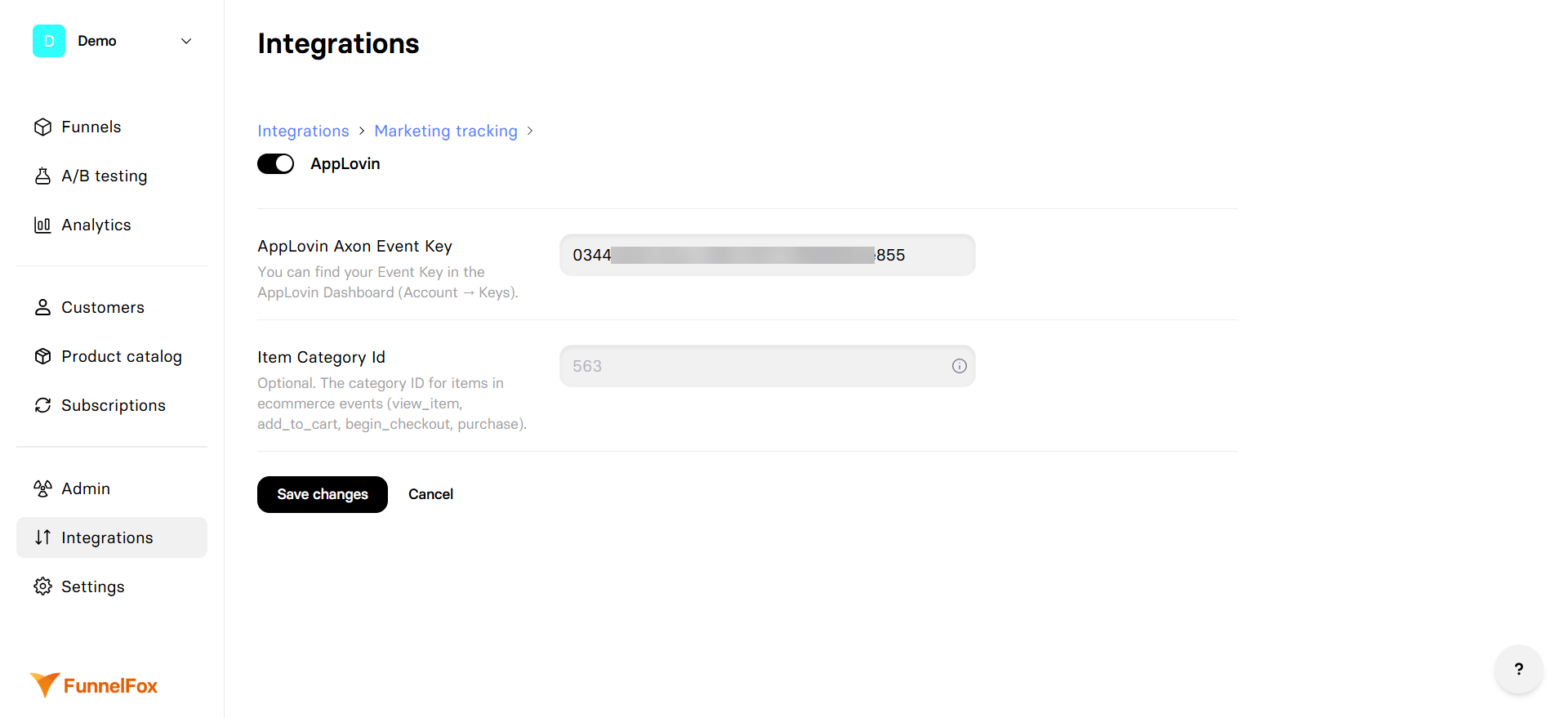
1. Go to [Integrations > AppLovin](https://app.funnelfox.com/integrations/applovin) in FunnelFox.
2. Paste the key into the **AppLovin Axon Event Key** field.
3. Optionally, enter your **Item Category ID** that classifies the type of product you sell. Learn more about [categories in the Axon (AppLovin) item object](https://support.applovin.com/en/growth/promoting-your-websites/track-and-optimize/events-and-objects#the-axon-item-object).
4. Save changes.
Tracking is now active. Republish any funnels you want to start tracking.
## How it works
The AppLovin Pixel is a JavaScript snippet that loads on your funnel pages and tracks visitor actions. Events are sent from the visitor's browser directly to AppLovin platform, where they appear for attribution and reporting.
FunnelFox sends events using the client-side AppLovin Axon SDK. Server-side events are not currently supported.
[AppLovin prohibits](https://support.axon.ai/en/max/adobe-air/overview/privacy#children) collecting data from children or apps targeted to children.
## User identification
FunnelFox sends the [FunnelFox profile ID](/docs/dashboard/view-subscriptions-funnelfox#subscriptions-list) to AppLovin to link events to the correct user.
## Tracked events
| AppLovin Event | Triggered When |
| ---------------- | --------------------------------------------------- |
| `page_view` | Page is presented to the user |
| `generate_lead` | User email is collected |
| `view_item` | Checkout impression (first event of the pair) |
| `begin_checkout` | Checkout impression (second event of the same pair) |
| `add_to_cart` | Purchase started |
| `purchase` | Purchase completed successfully |
A single checkout impression in FunnelFox triggers two AppLovin events in sequence: first `view_item`, then `begin_checkout`.
## Setup
You don't need to install the AppLovin Pixel manually. Just follow the steps below to configure your AppLovin event key in FunnelFox.
1. Log in to your [AppLovin](https://dash.applovin.com/login) account.
2. Go to **Account > General > Keys**.
3. Copy the **Event key**.
1. Go to [Integrations > AppLovin](https://app.funnelfox.com/integrations/applovin) in FunnelFox.
2. Paste the key into the **AppLovin Axon Event Key** field.
3. Optionally, enter your **Item Category ID** that classifies the type of product you sell. Learn more about [categories in the Axon (AppLovin) item object](https://support.applovin.com/en/growth/promoting-your-websites/track-and-optimize/events-and-objects#the-axon-item-object).
4. Save changes.
Tracking is now active. Republish any funnels you want to start tracking.