Setup
Add your web app in AppsFlyer, get your Dev Key, and connect it to FunnelFox.1. Add your app in AppsFlyer
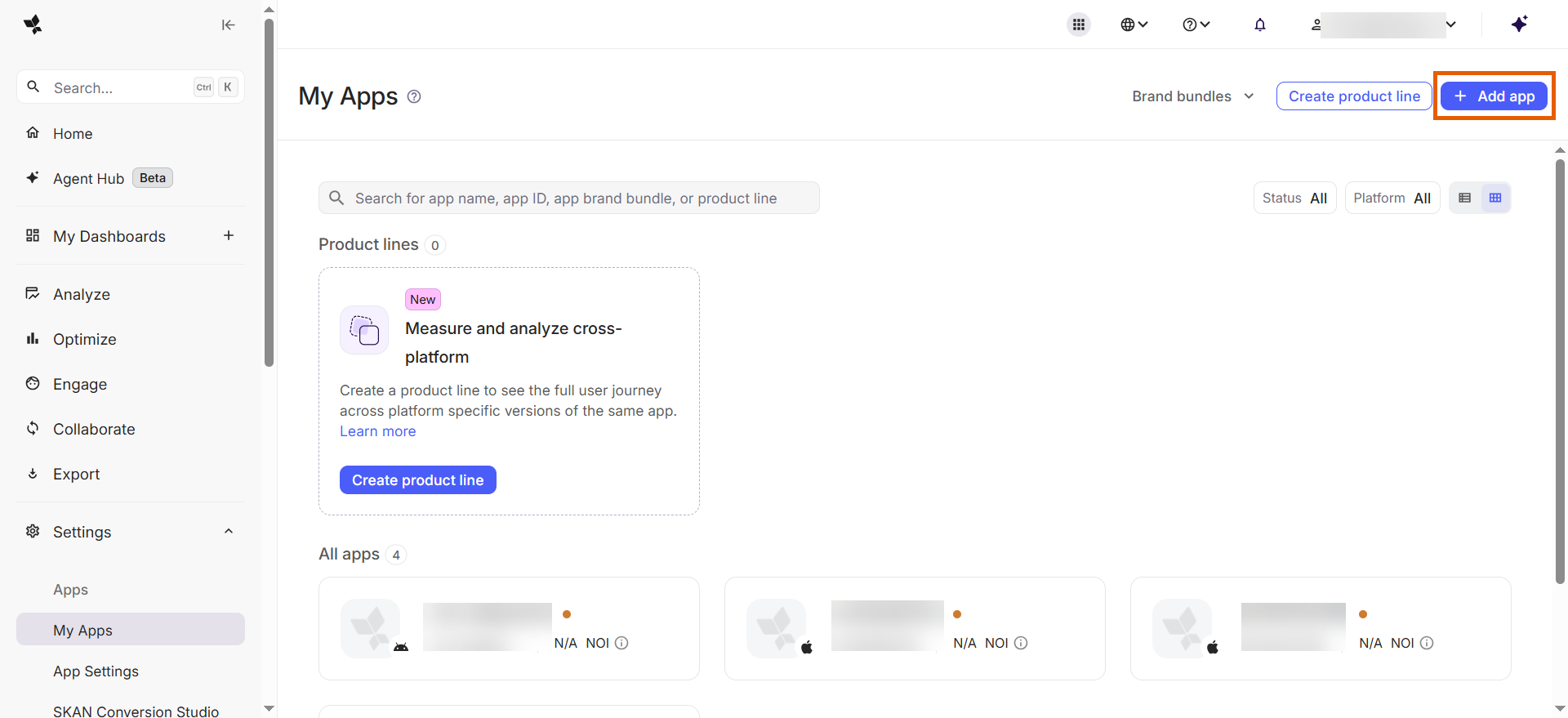
- Log in to AppsFlyer.
- Go to Settings > My Apps.
- Click + Add app.
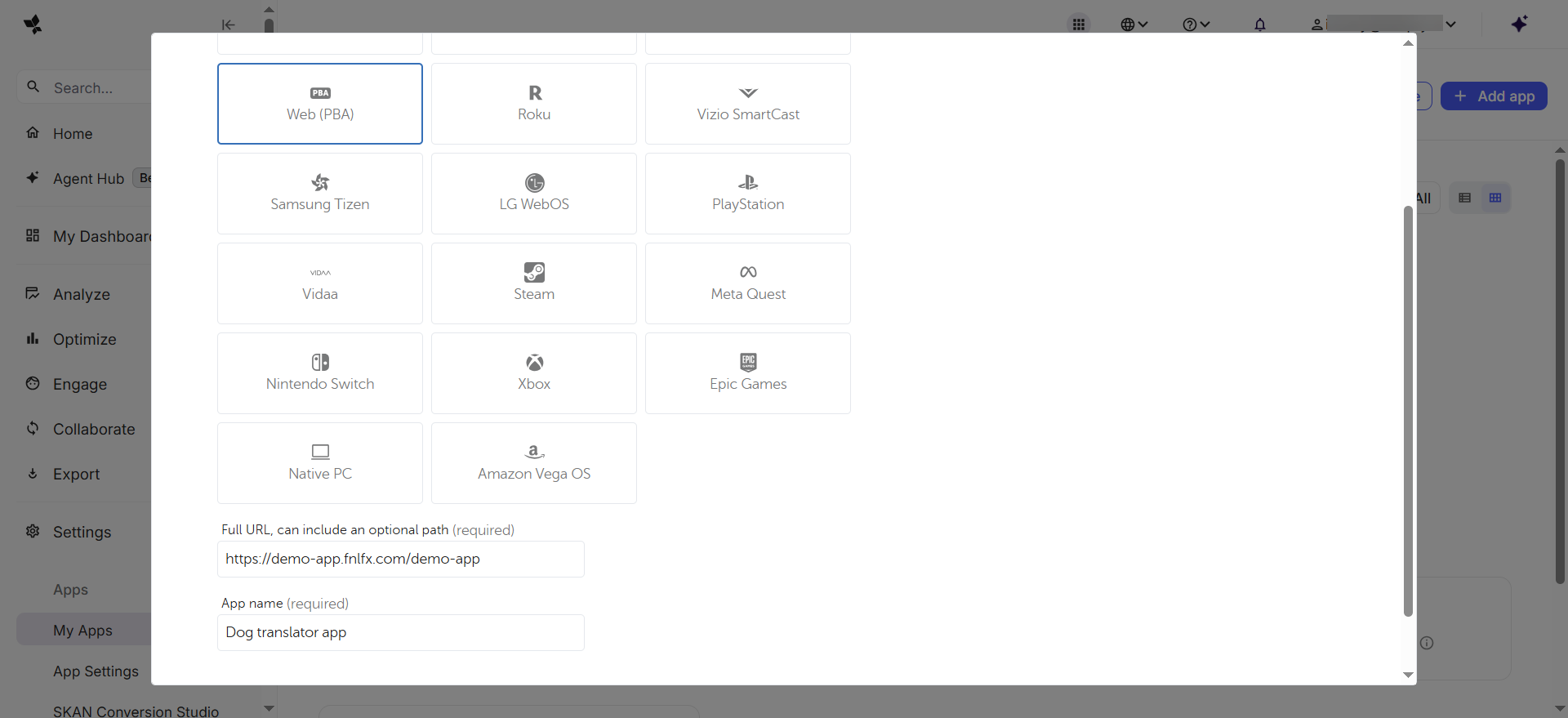
- Fill out the app details and click Add my app:
- Platform: Web (PBA).
- URL: Your FunnelFox project URL.
- App name: Any name to identify this app.
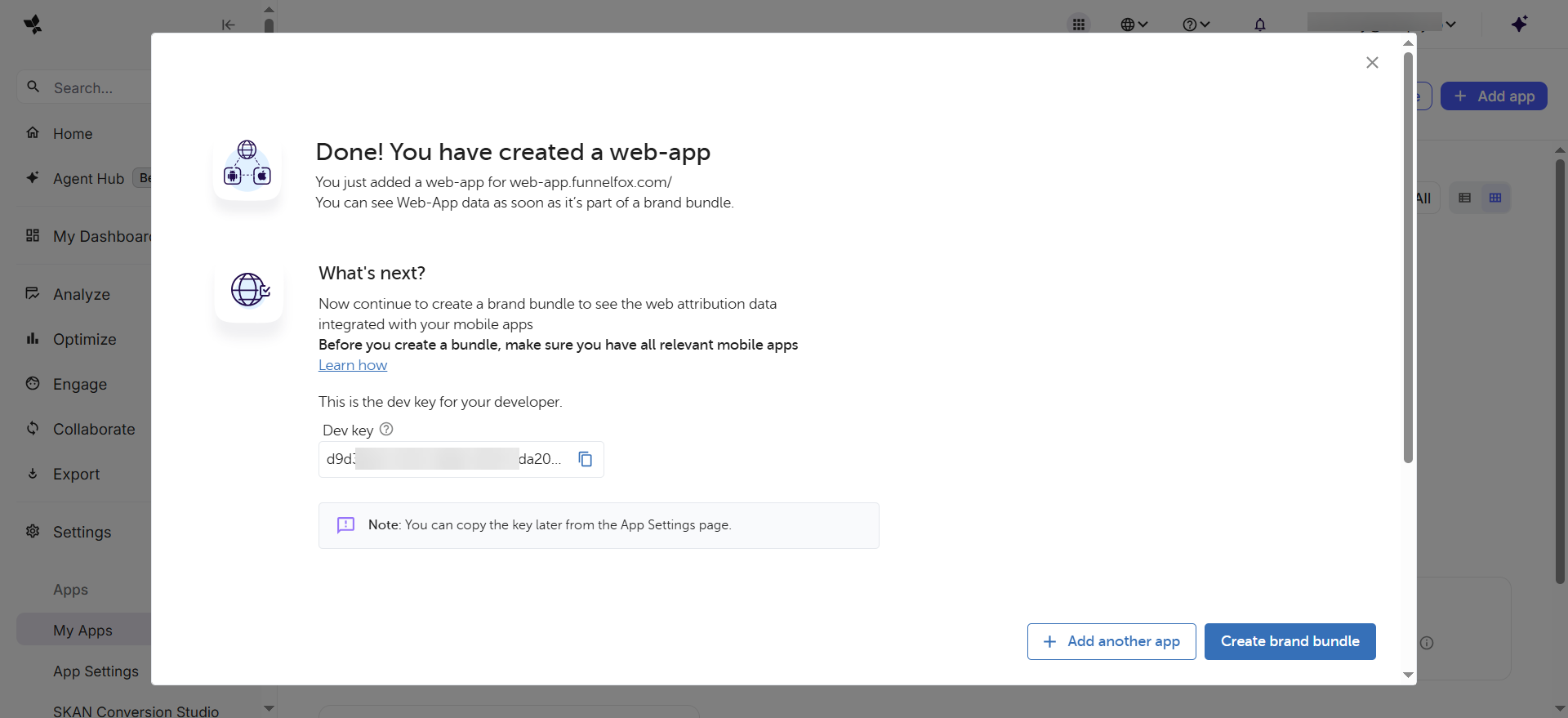
- Copy the Dev Key.
2. Configure in FunnelFox
- Go to Integrations > AppsFlyer in FunnelFox.
- Paste the Dev Key into the AppsFlyer Web Dev Key field.
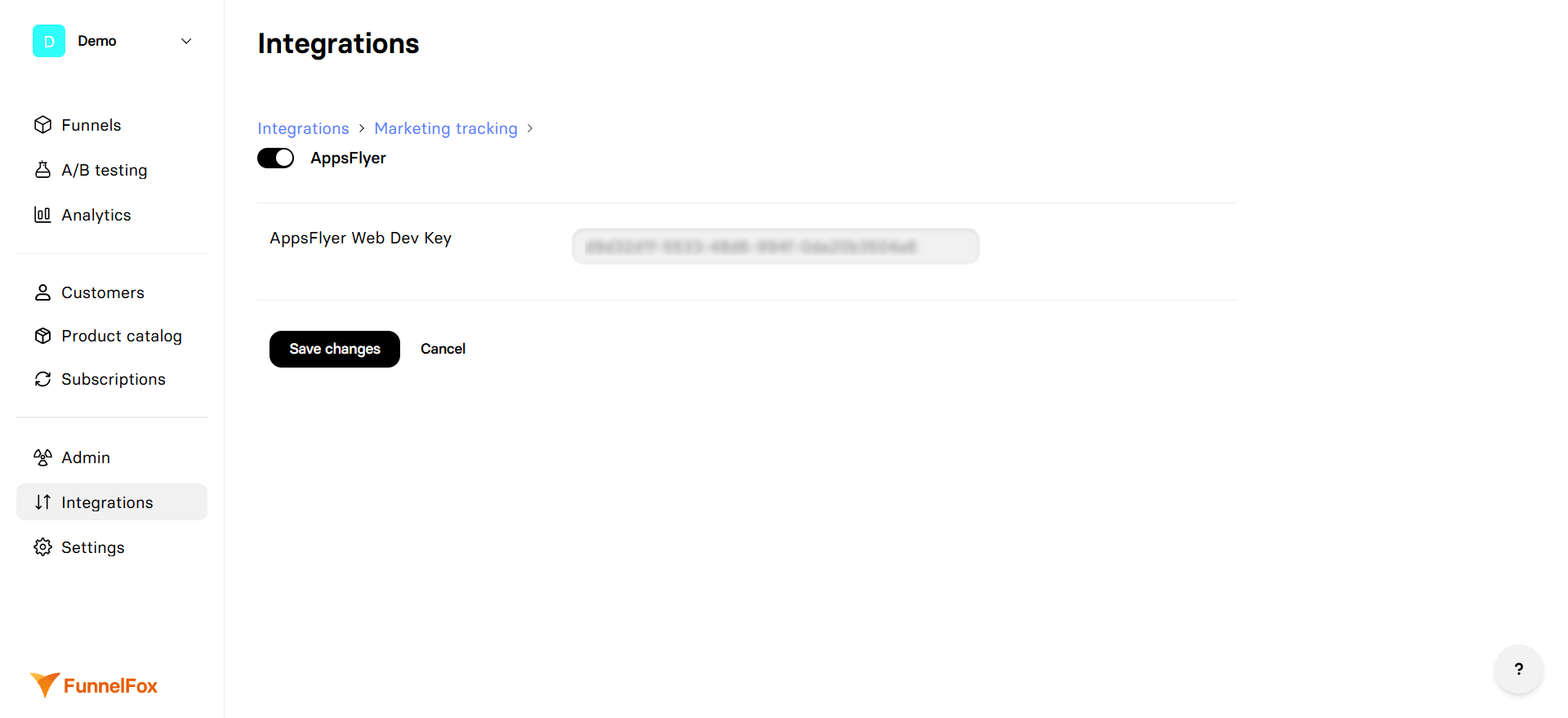
- Click Save changes.
AppsFlyer tracking is now active on your production funnel. Repeat the setup using
https://app.funnelfox.com/ as your app URL in AppsFlyer to enable event tracking for funnel preview.Test your integration
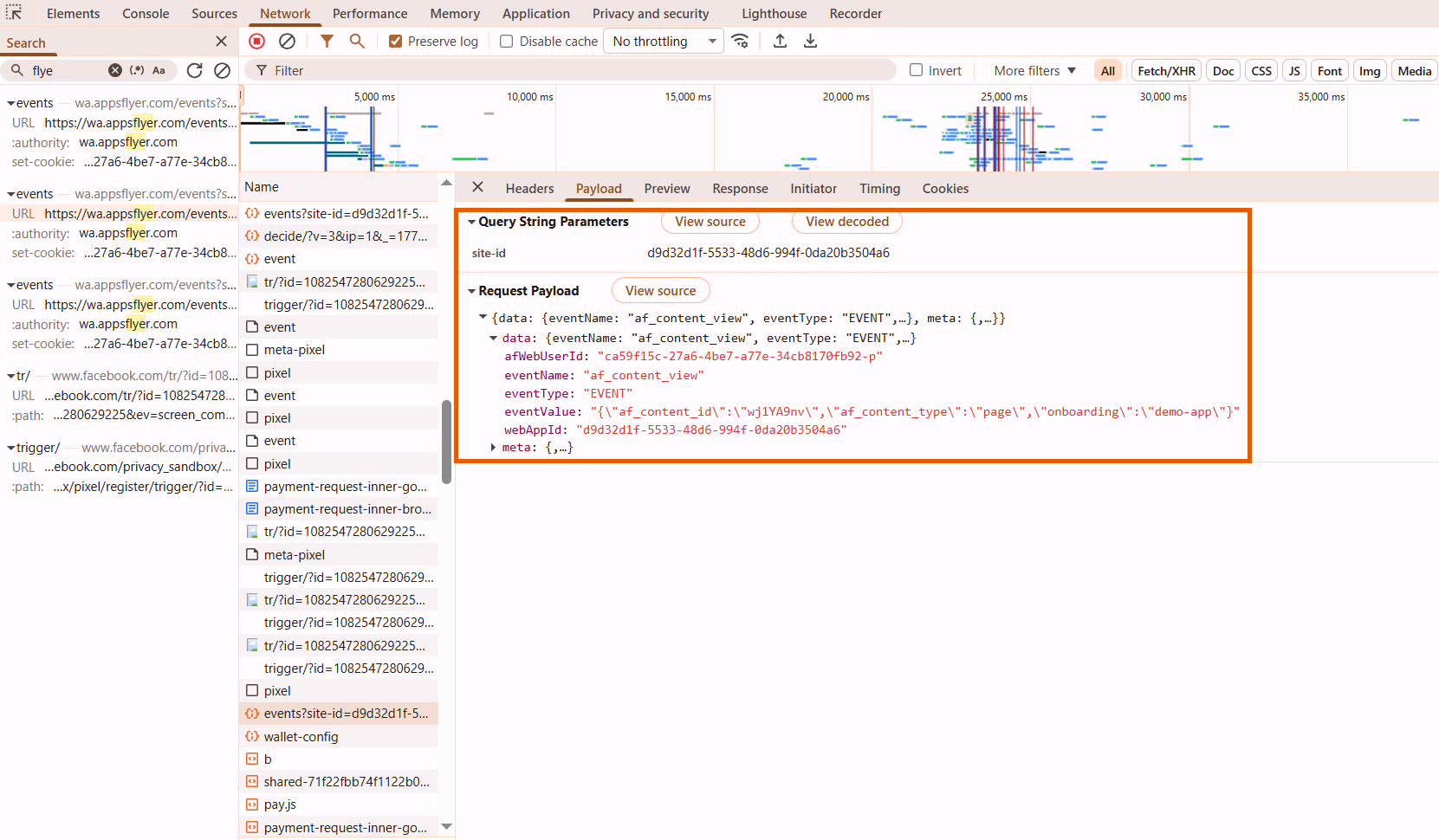
Verify that events are firing correctly from your funnel:- Open your funnel in a browser.
- Open developer tools.
- Go to the Network tab.
- Interact with your funnel (navigate pages, view checkout, complete a purchase).
-
Filter network requests by
appsflyerand look for outgoing event calls.