
View payments
You can view all the latest payments in your organization as well as all payments for a specific customer:- Go to the Support Tool page of your FunnelFox Payments dashboard. The latest payments appear below.
- Search for a user or click the user UUID under Latest payments.
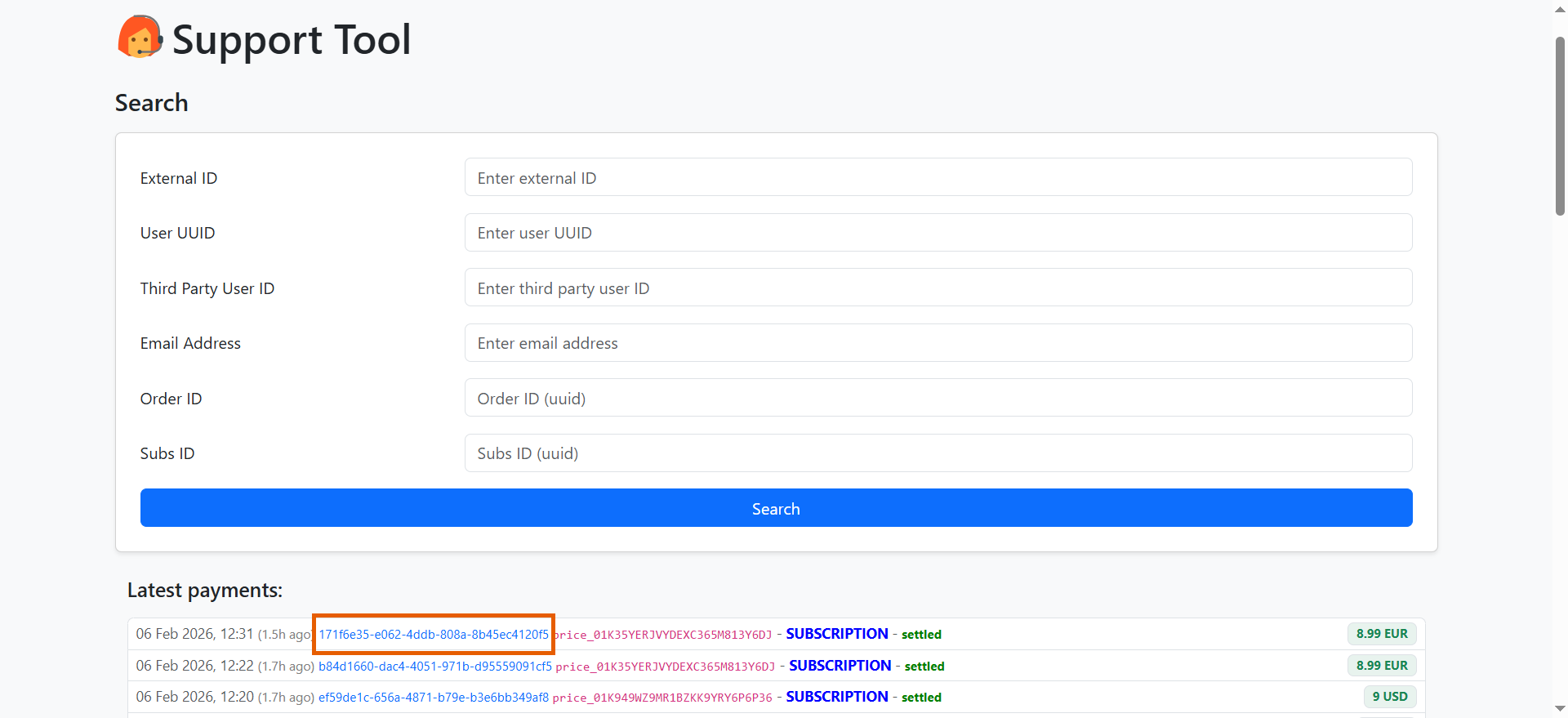
- Click any transaction to view payment details.
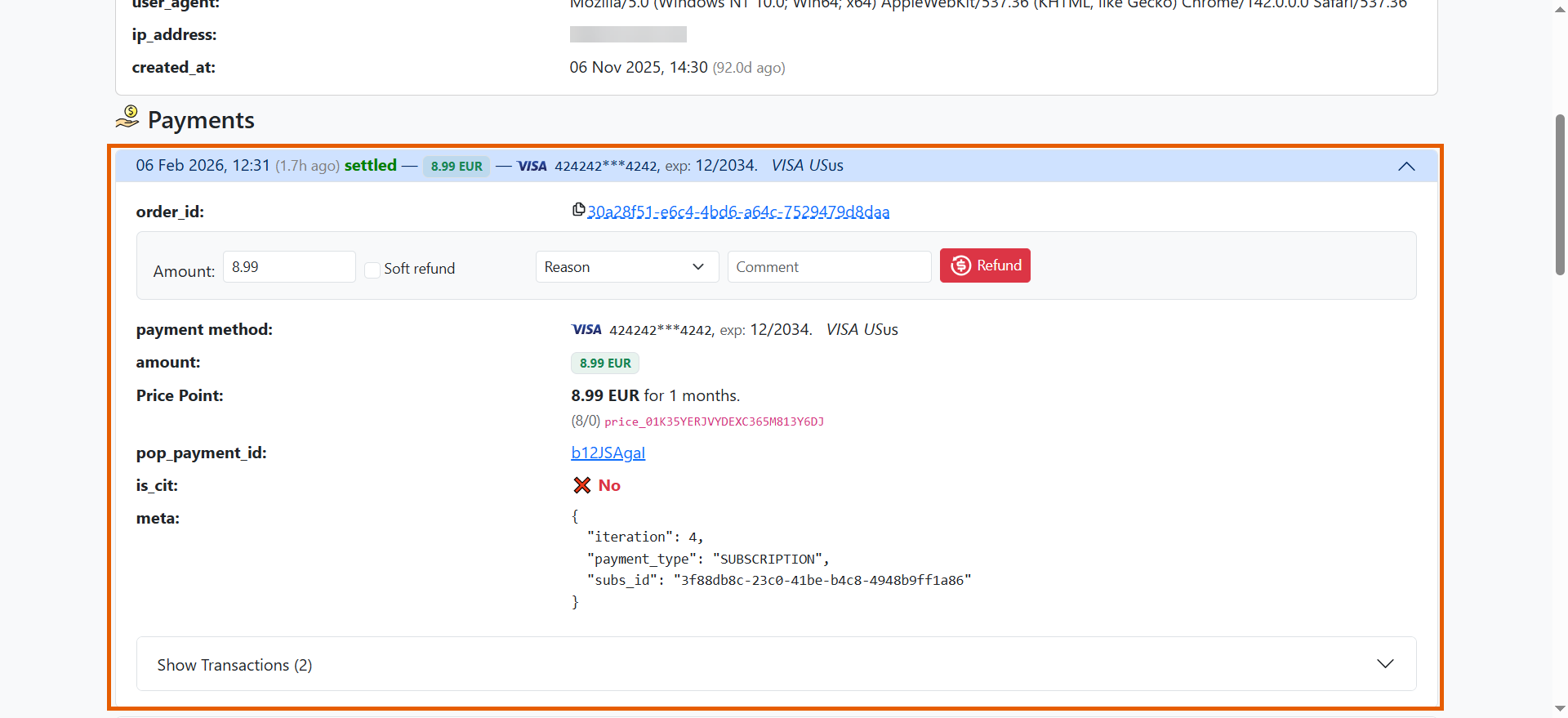
Payment details
When you open a payment, you see the following details:- order ID — Unique identifier for this transaction.
- payment method — Card details including masked number, expiration date, card type, and country.
- amount — Total amount charged to the customer.
- Price Point — The product and price purchased with
pp_ident. - pop_payment_id — Internal payment identifier.
- is_cit — Indicates if this is a Customer Initiated Transaction (CIT).
- meta — JSON object containing payment context like iteration number, subscription ID, and payment type.
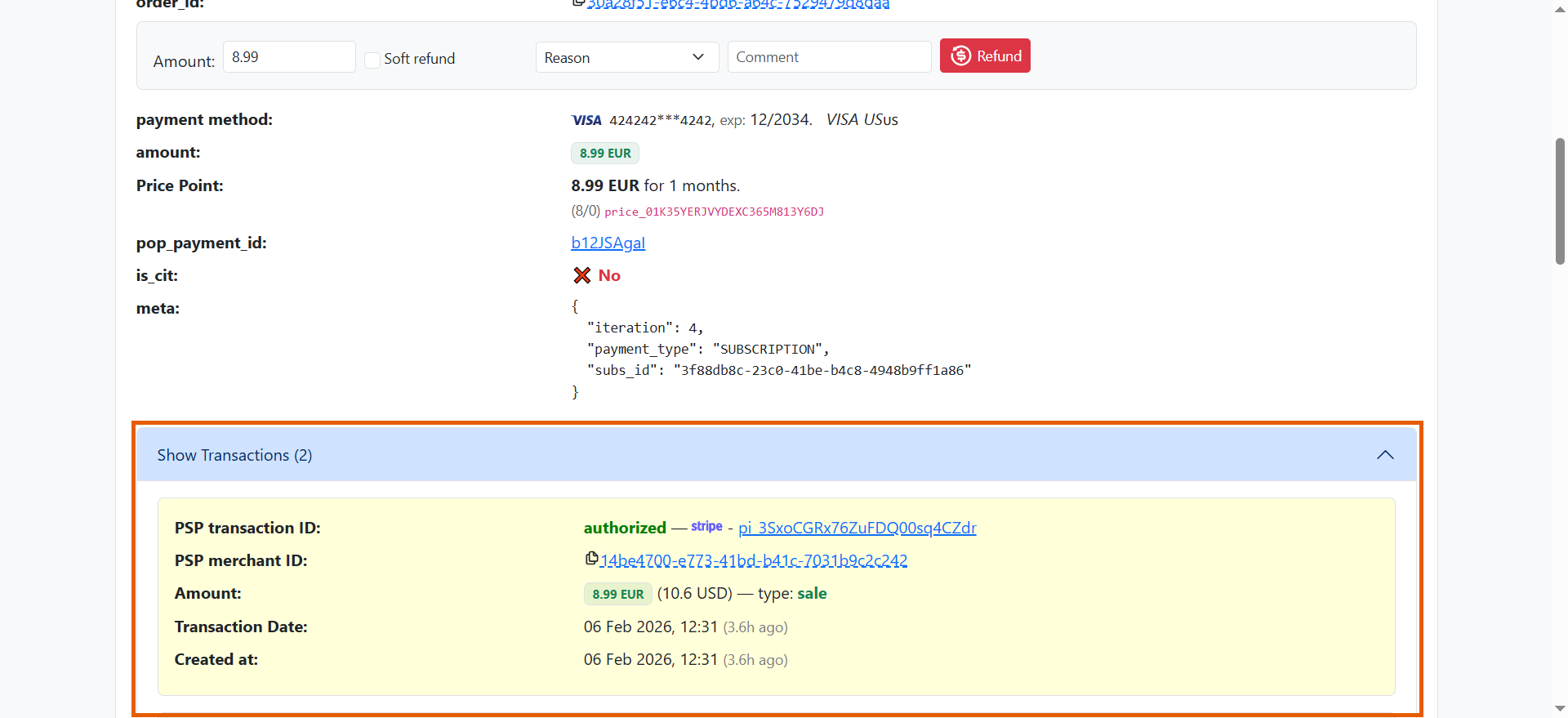
- PSP transaction ID — Payment processor’s unique transaction identifier with status (authorized, settled, etc.).
- PSP merchant ID — Merchant account identifier used for this transaction.
- Amount — Transaction amount and type.
- Transaction Date — When the PSP processed this transaction.
- Created at — When FunnelFox Payments recorded this transaction.
Manage payments
FunnelFox Payments allows you to refund any payment or process one-click purchases (like upsells) using securely stored payment credentials.Refunds
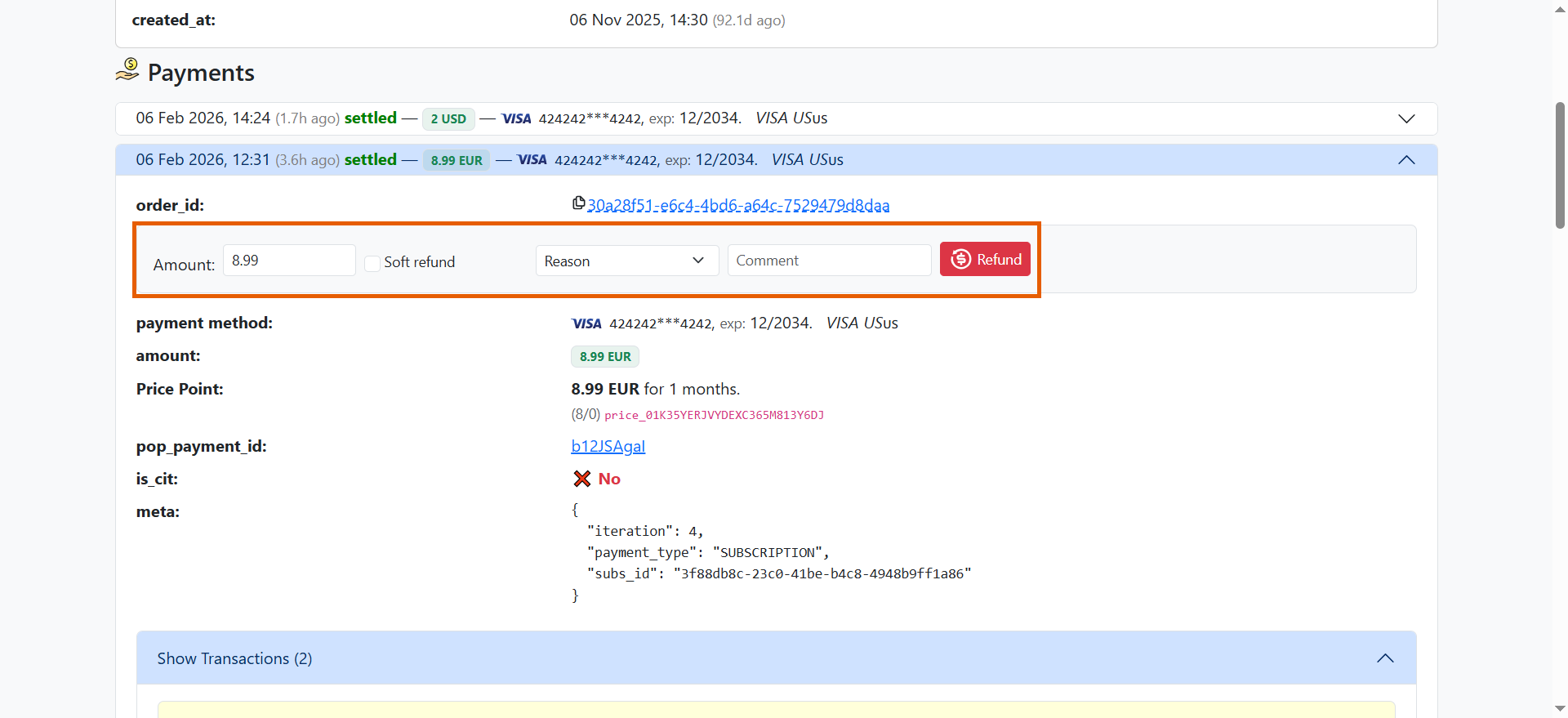
To ensure refunds are processed correctly, initiate them only through the Support Tool, Primer, or the FunnelFox Payments API. To process a refund in the Support Tool:- Open any payment while viewing payments for a specific customer.
- Configure your refund:
- Amount:
- If the entire amount is refunded (full refund), the subscription immediately becomes
EXPIREDand the one-off payment is revoked. - If a partial amount is refunded, auto-renewal is disabled automatically.
- If the entire amount is refunded (full refund), the subscription immediately becomes
- Soft refund: Refunds the payment but keeps auto-renewal enabled. The subscription or one-off remains active.
- Optionally, provide additional information:
- Reason — Reason code for the refund.
- Comment — Custom message.
- Click Refund.
Refunds are limited to 50 attempts per day per organization, and this limit is configurable per merchant.
One-click payment
Once a customer completes a purchase, their payment credentials are securely stored. This allows one-click payments for both one-off and subscription upsells without re-entering details. You can perform one-click payments from the Support Tool or using the FunnelFox Payments API.One-click payments do not use a payment method token, so the two-charge limit per day does not apply.
- Find the customer on the Support Tool page.
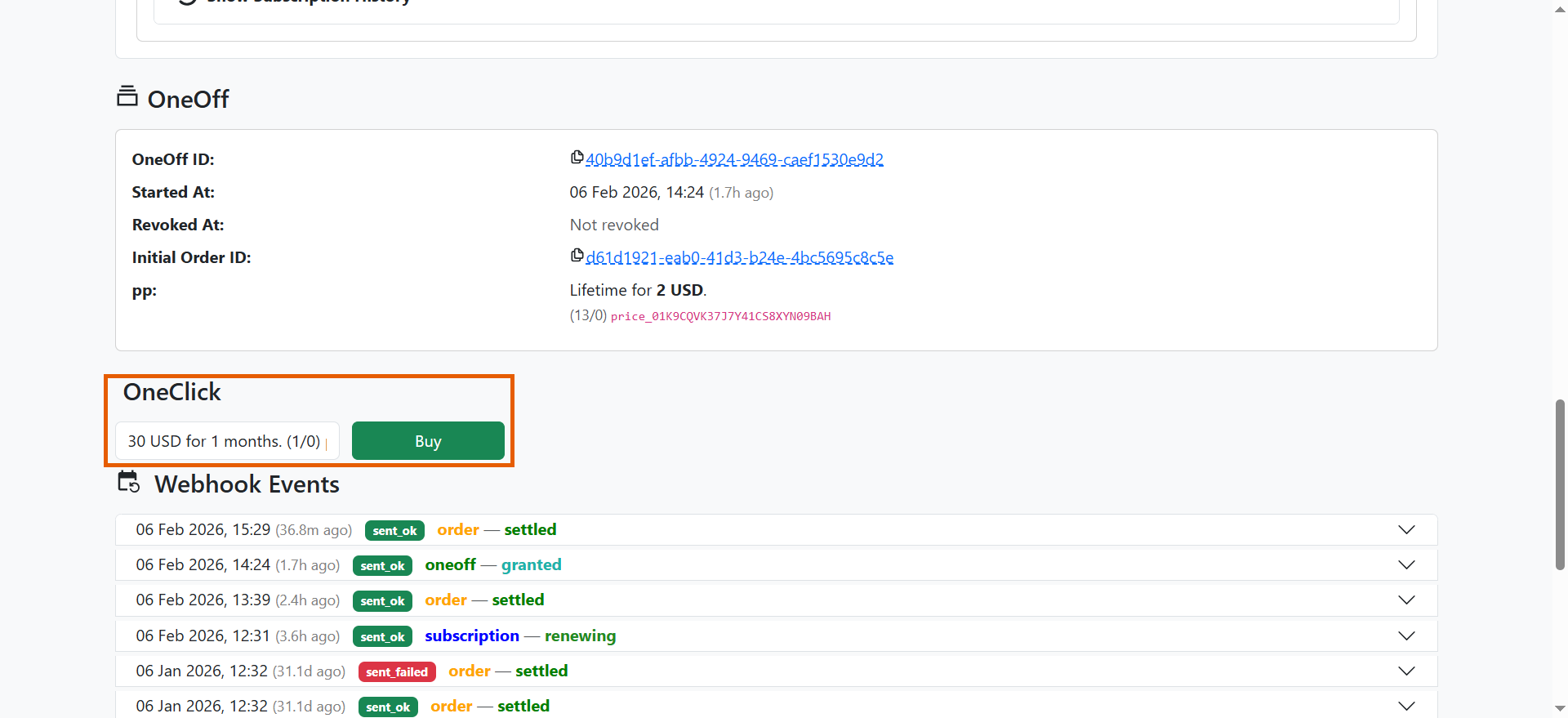
- Select the price point to upsell under the OneClick section.
- Click Buy.
Payment method update
Customers may experience failed payment attempts due to issues with their payment method. FunnelFox Payments lets you redirect customers to the Update payment method page where they can provide a valid payment method. To activate this feature, contact your Solution manager.Metadata
FunnelFox Payments attaches metadata to every payment request sent to Primer:-
Must be a properly formatted email address (has a local part, an
@sign, and a valid domain). -
Reject if the email ends with
example@example.com. -
Reject if the email starts with
FIXME@.
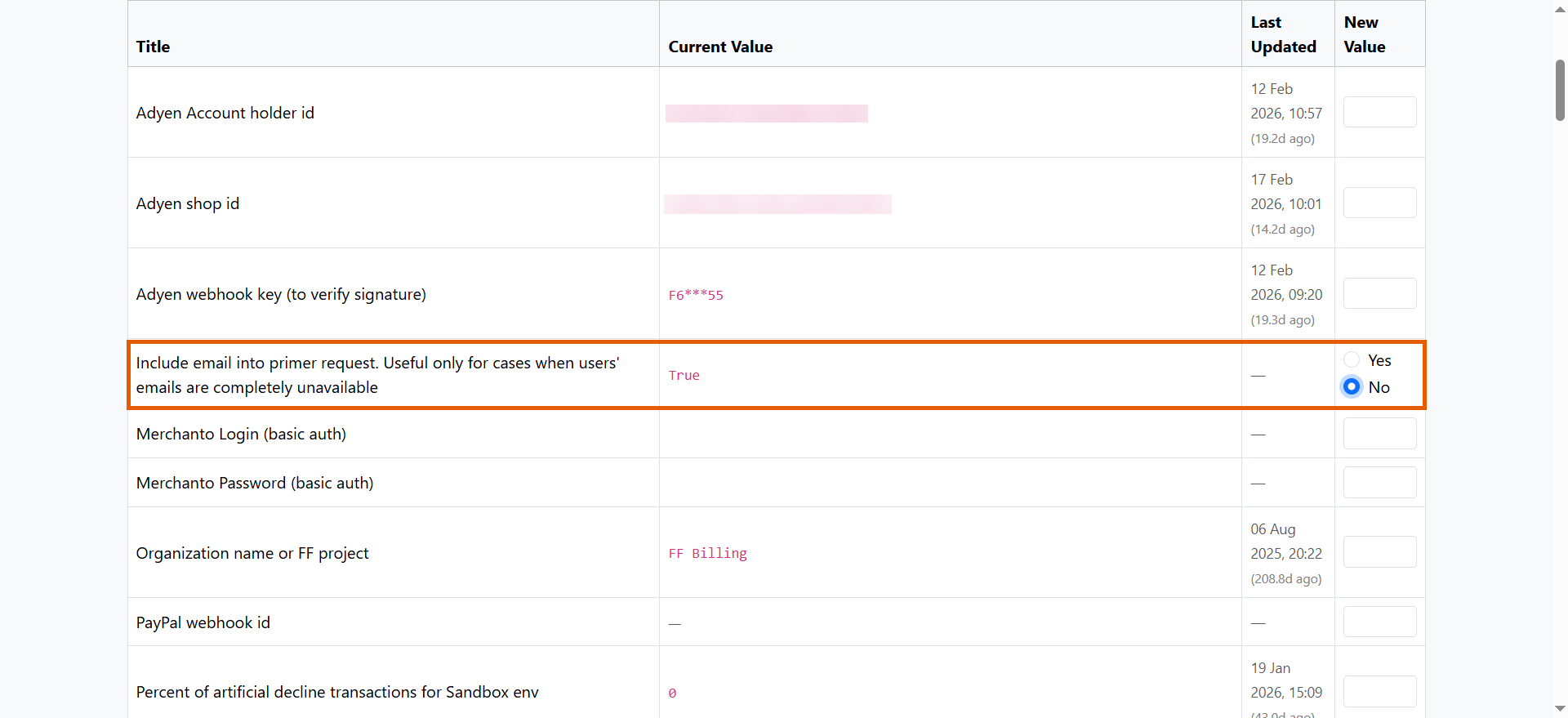
- Go to the Settings page of your FunnelFox Payments dashboard.
- Set Include email into primer request to No and save your changes.
Billing descriptor
The billing descriptor is the short text FunnelFox Payments sends with a charge, which the bank prints next to the amount on your customer’s card statement. It is also the label shown in the Apple Pay recurring payment sheet. Use a name customers recognize, such as your app or brand rather than your legal entity, for exampleACME.COM. A
recognizable descriptor reduces disputes opened for unrecognized charges.
You can set the descriptor in two places:
- Organization default: The statement descriptor setting applies to every price point that has no descriptor of its own.
- Price point: The Descriptor field overrides the organization default for that price point.
A descriptor accepts up to 22 characters: letters, digits, spaces, and
. , _ ? + / -. Other characters, including apostrophes and &, are rejected
and block saving.
Once set, FunnelFox Payments sends the descriptor to Primer and to Stripe, where it is the
suffix appended to your Stripe account’s own prefix. Adyen, PayPal, Braintree,
Checkout.com, and Airwallex take statement text from their own account
configuration, so set it there.
Saving a price point with an empty Descriptor stores the current
organization default into that price point, so it no longer follows later
changes to the default. A price point stays genuinely empty only if it was saved
while the organization default was also empty.
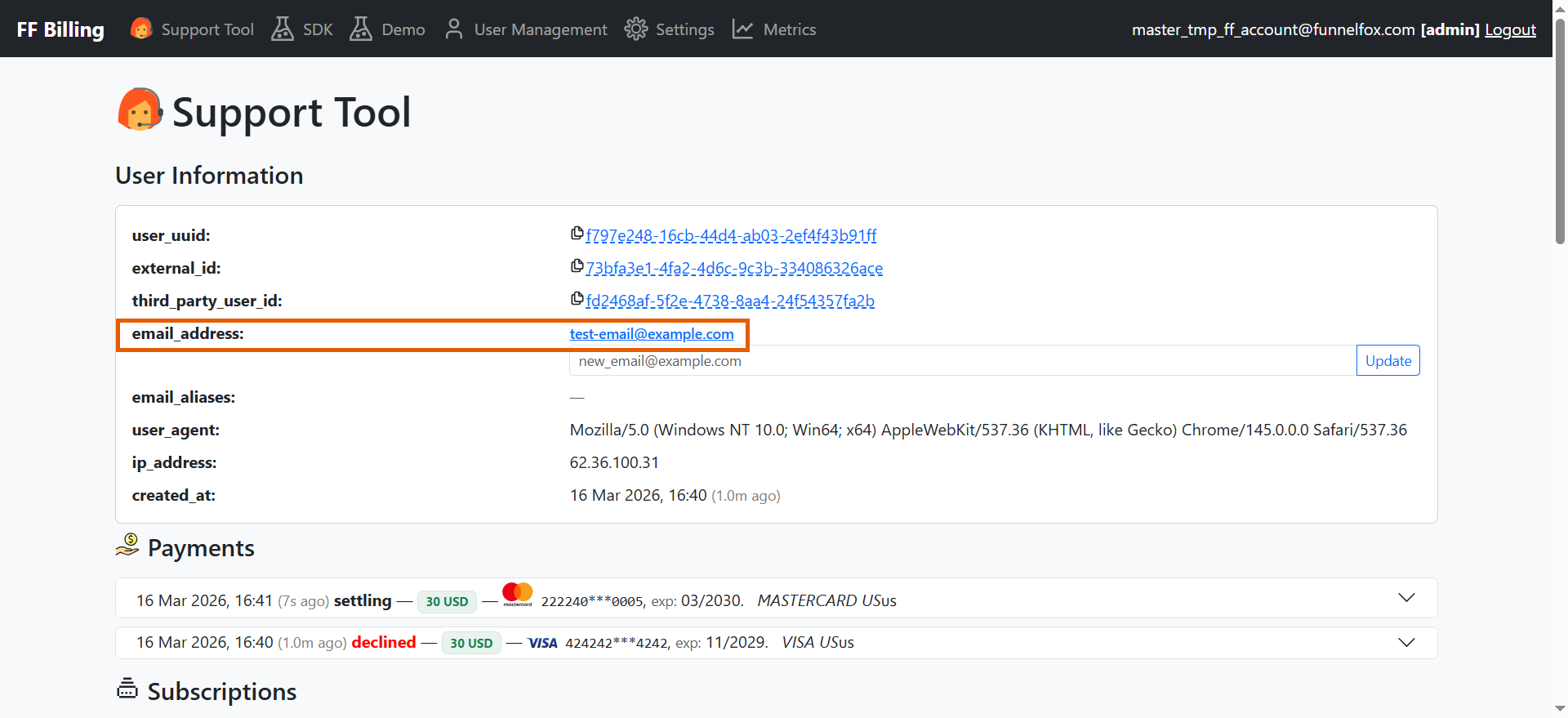
- Find the customer through the Support Tool page.
- The email appears under the User Information section.
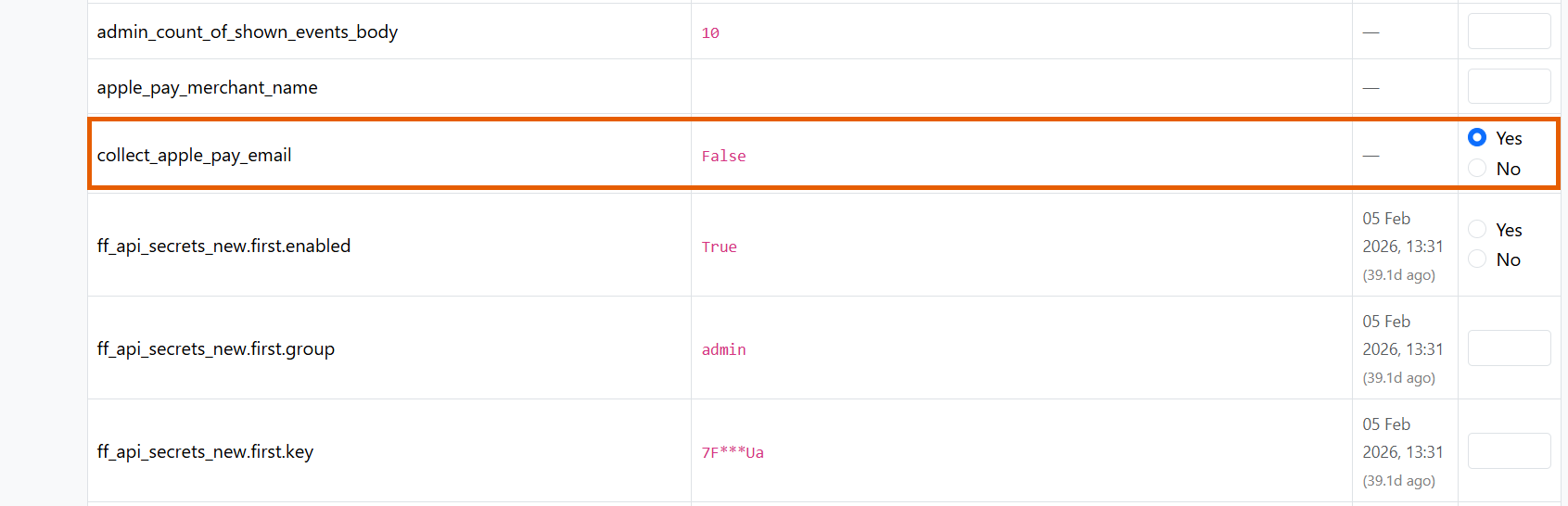
- Go to the Settings page of your FunnelFox Payments dashboard.
- Set collect_apple_pay_email to Yes and save your changes.
- If email is collected both from a funnel input and from Apple Pay, the Apple Pay email takes priority.
- The system keeps both addresses: the secondary email is stored as an alias.
- When an Apple Pay email is captured, a
userwebhook fires with theupdate_emailsubtype. - The Apple Pay email is not included in payment metadata. It is available directly in FunnelFox Payments.