- TikTok Pixel event tracking
- Events API
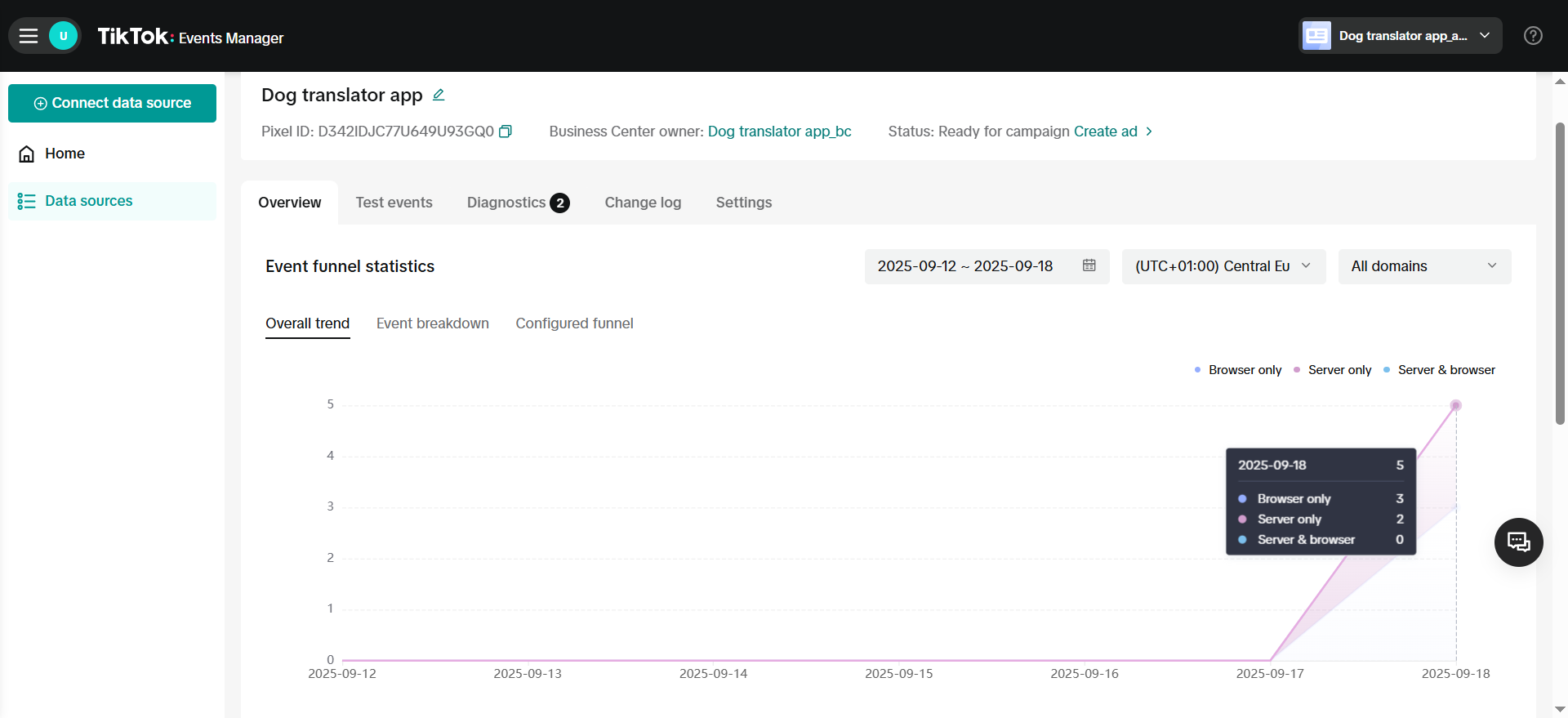
TikTok Pixel vs Events API
Here’s how these two tracking methods work:- TikTok Pixel is code on your funnel pages that tracks what visitors do and sends this data to TikTok through their browser.
- Events API connects FunnelFox servers directly to TikTok, which means events are still tracked even if browser tracking doesn’t work.
Events API is recommended alongside TikTok Pixel to maximize performance benefits. Learn more in the TikTok documentation on Events API.
Use Events API
Events API acts as a backup when browser tracking fails or gets blocked. Here’s a common example: When someone buys your product through PayPal, they complete the purchase on PayPal’s website, not on your funnel. Some browsers (especially mobile app browsers) can’t track this properly, so you might miss thePurchase event.
Events API solves this problem. When FunnelFox servers get the transaction details from PayPal, they automatically send a Purchase event to TikTok using Events API. This way, you never miss important conversion data.
Tracked events
Projects that used TikTok Pixel before event mapping was added send
CompletePayment instead of Purchase. It shows as
CompletePayment (legacy) in TikTok event. Select Purchase
there to switch. Learn more about
reserved events
in TikTok.Payment flow events
When customers purchase subscriptions, the event flow varies depending on the purchase type. Select your PSP below to see how each purchase type triggers TikTok Pixel events for your setup.Stripe
Stripe
Paddle
Paddle
Solidgate
Solidgate
FunnelFox Billing
FunnelFox Billing
Configure events
By default, FunnelFox sends events to TikTok based on the mappings described in the Tracked events and Payment flow events sections. You can customize this behavior to match your setup.- Go to Purchase events on the Integrations > TikTok page.
- Configure the following:
- Enabled: Whether FunnelFox sends the event at all.
- Channel: How the event reaches TikTok: Browser + API, Browser only, or API only.
- TikTok event: The TikTok event name the purchase maps to. Choose from
Purchase,StartTrial,Subscribe,InitiateCheckout, andAddToCart. - Value: Attaches the purchase value and currency to the event.
- Limit Purchase Events: Sends only the first paid purchase per session. Learn more in the Limit purchase events section below.
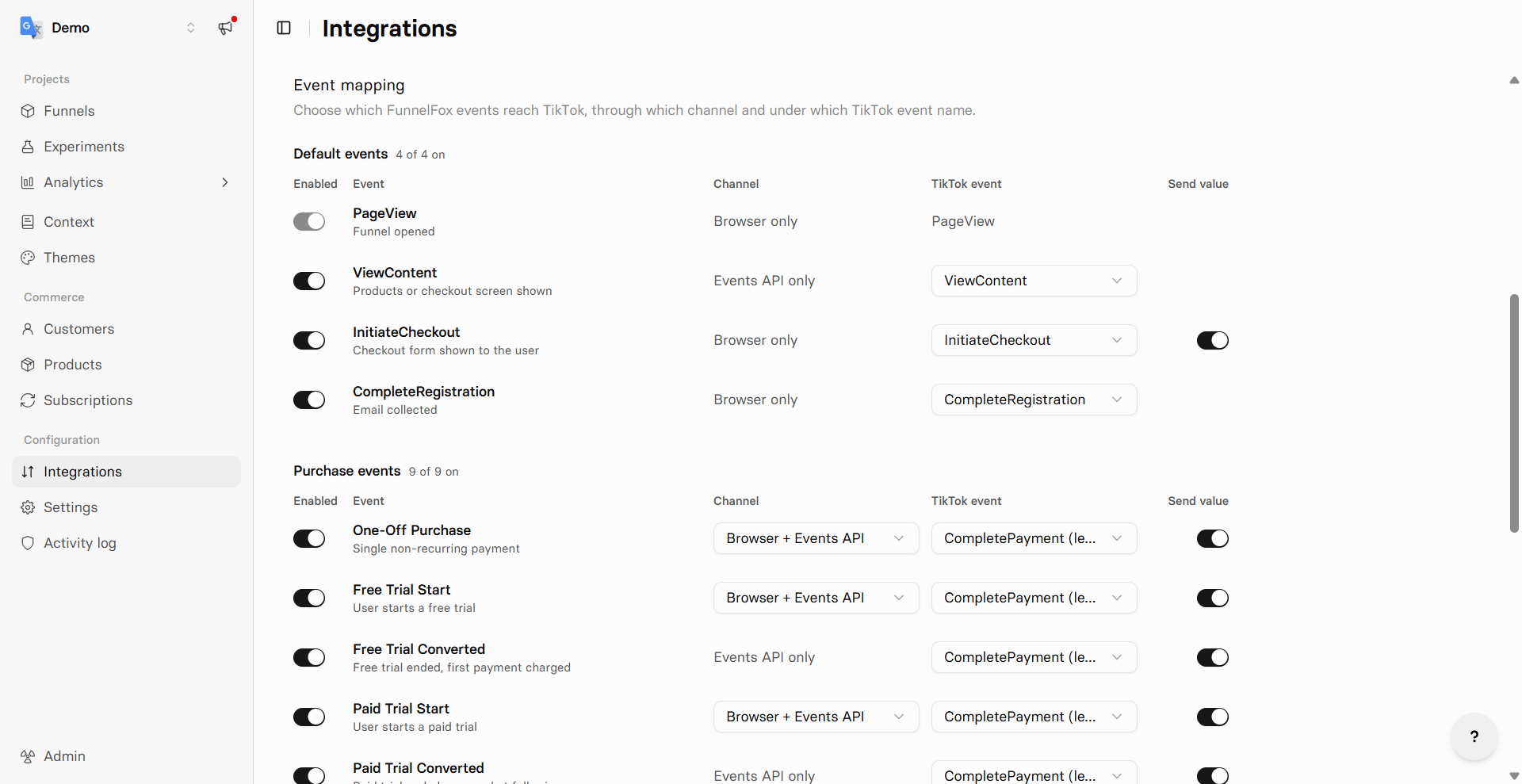
Free Trial Converted, Paid Trial Converted, Subscription
Renewal, and Subscription Upgrade happen after the user leaves the
funnel, so the browser pixel cannot fire them. These events always send
through API only.
Paid Trial Converted fires only on the first renewal after a paid
trial. Every later renewal uses Subscription Renewal.
Limit purchase events
You can stop sending purchase events after the first one for the same user. But for free trials, FunnelFox will still keep sending the purchase event for trial start and conversion, and only suppress renewals. To do so, go to Integrations > TikTok and toggle on Limit Purchase Events.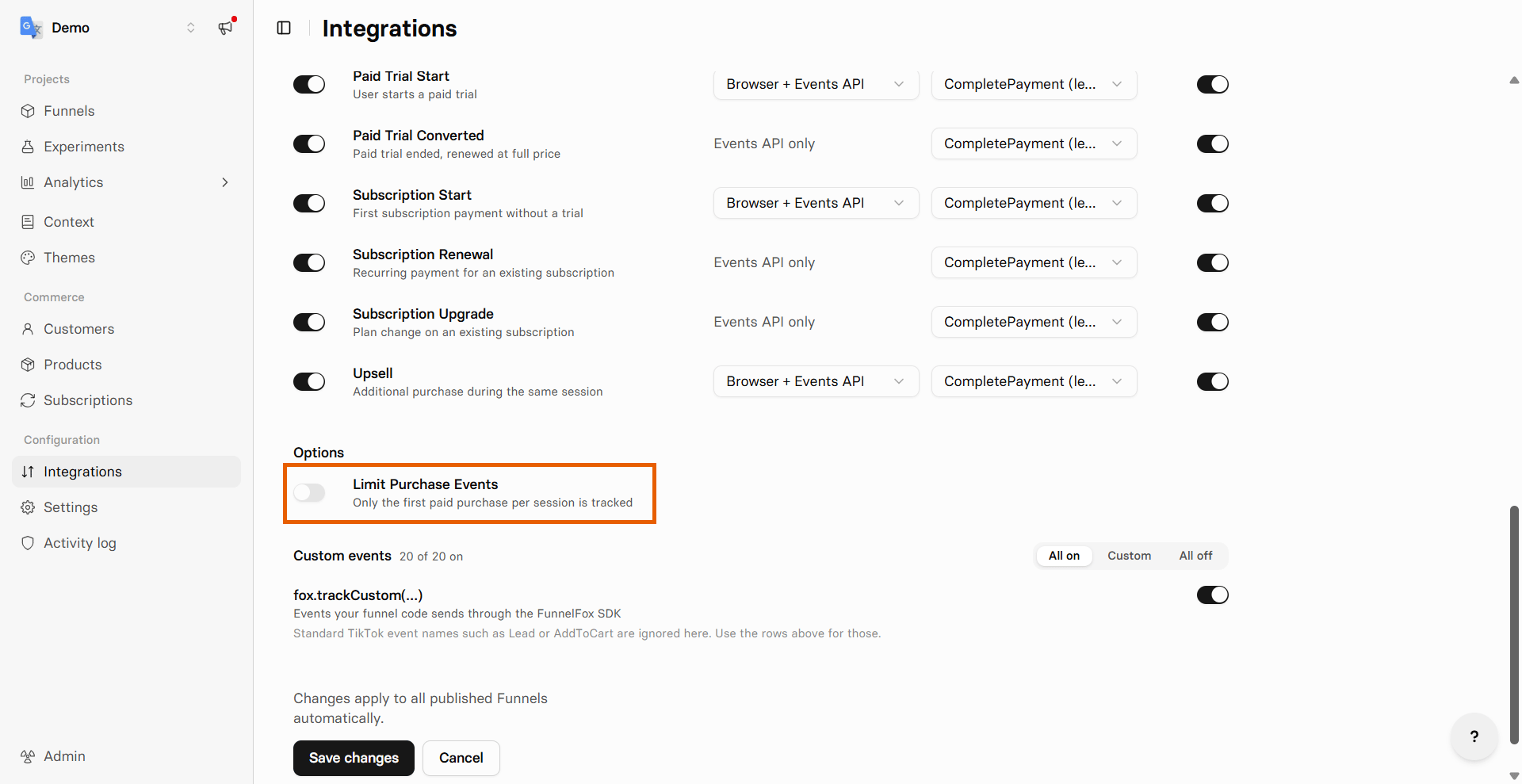
Stripe
Stripe
Paddle
Paddle
Solidgate
Solidgate
FunnelFox Billing
FunnelFox Billing
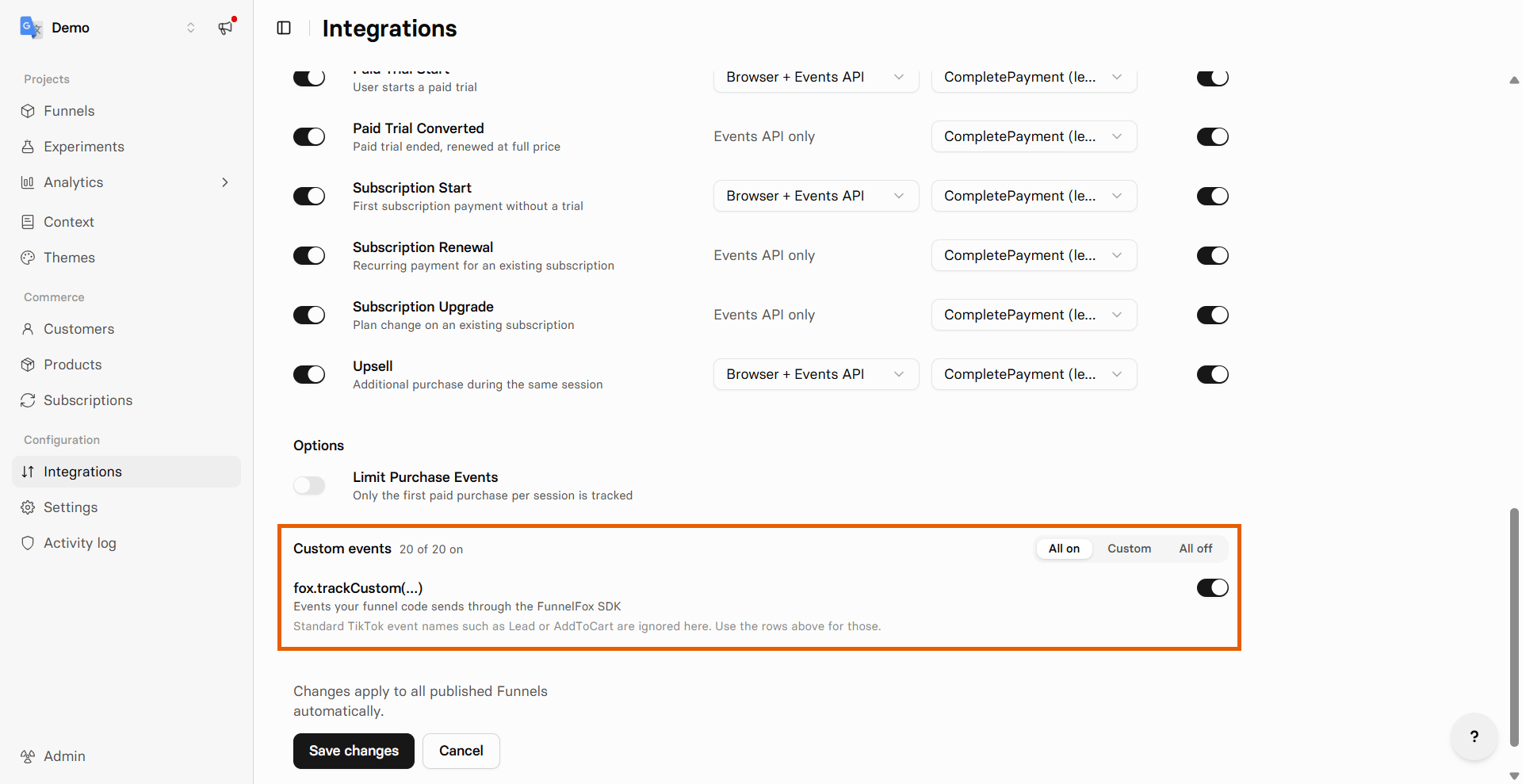
Custom events
FunnelFox sends 20 custom funnel events to TikTok from the browser, such asscreen_presented, checkout_presented, and purchase_started. Under
Custom events, select All on, All off, or Custom to turn
each event on or off.
The fox.trackCustom(…) toggle controls events your funnel code sends
with fox.trackCustom. Standard TikTok
event names such as Lead or AddToCart are ignored there.